# Add CSV import to your React app
Build a React CSV importer that lets users map columns, correct invalid values, and deliver records to your application.
Canonical HTML: https://www.csvjetty.com/guides/react-csv-import
## 1. Configure your importer
A CSV parser reads a file. An import workflow also needs to handle unexpected headers, missing values, and corrections. CSVJetty provides that workflow in a modal, then delivers the resulting records to your app.
Create an importer in the CSVJetty dashboard, select callback delivery, and copy its importer key. Replace YOUR_IMPORTER_KEY in the examples with that key.
Add these columns in the dashboard. Enable Require valid rows to block completion while invalid values remain.
| Display label | Field name | Data type | Required |
| --- | --- | --- | --- |
| Full name | name | Text | Yes |
| Email address | email | Email | Yes |
| Company | company | Text | No |
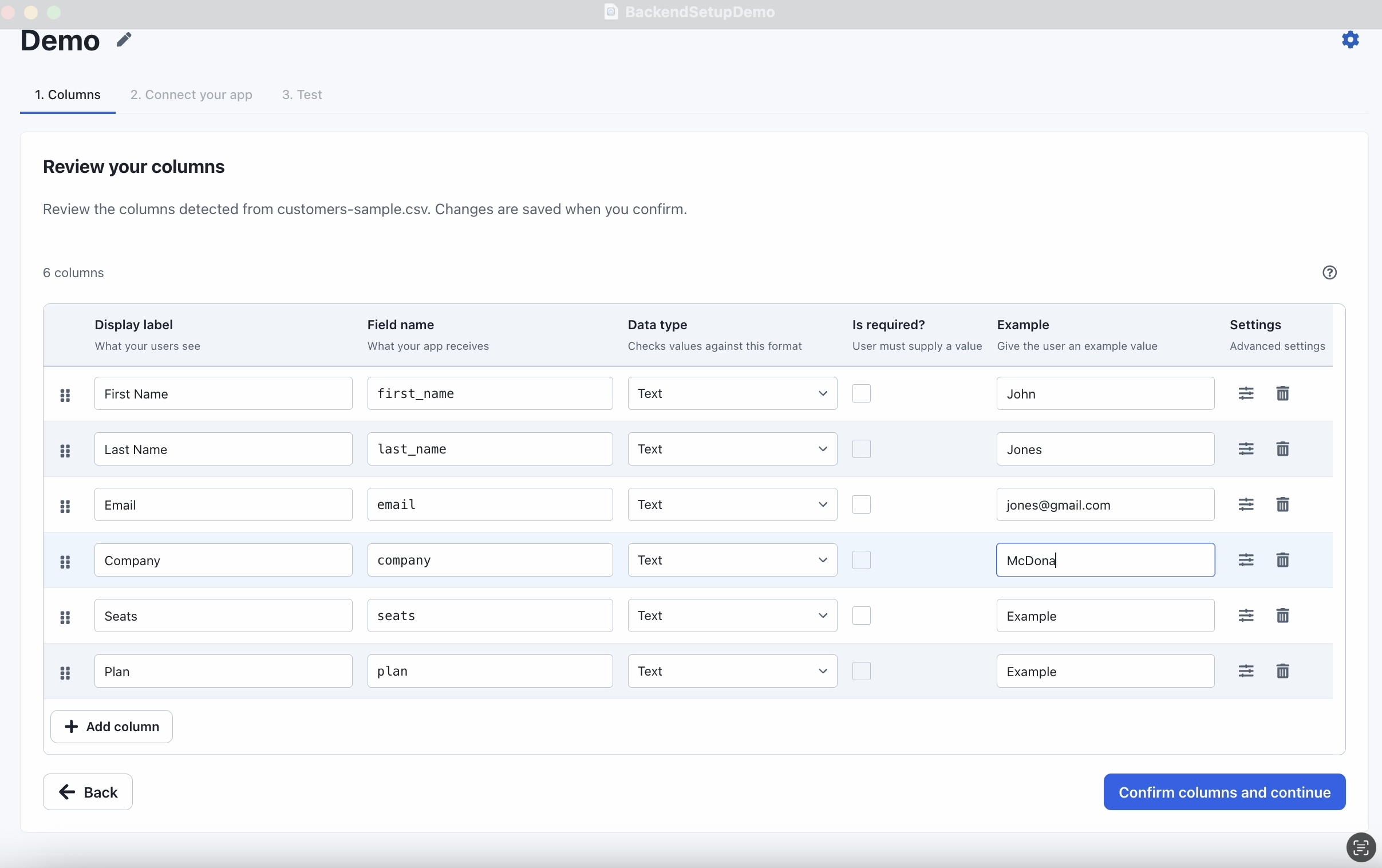
Dashboard configuration example. The screenshot uses a different schema from the contact examples below; configure the fields specified in each guide.
## 2. Install the React package
CSVJetty supports React 18 and React 19. Run this command from your existing React project:
```bash
npm install csvjetty
```
## 3. Add the import component
Save this as ContactImport.jsx and render it from your application. The imported records appear below the button as JSON. This example uses React state; reloading the page clears the records.
```jsx
import { useState } from "react";
import CSVJetty from "csvjetty";
export default function ContactImport() {
const [contacts, setContacts] = useState([]);
return (
{
setContacts((current) => [...current, ...rows]);
}}
>
Import contacts
{JSON.stringify(contacts, null, 2)}
);
}
```
```jsx
import ContactImport from "./ContactImport";
export default function App() {
return ;
}
```
## 4. Upload a sample file
[Download contacts.csv](https://www.csvjetty.com/samples/contacts.csv)
```csv
Full Name,Email,Company
Ada Lovelace,ada@example.com,Analytical Engines
Grace Hopper,grace@example.com,Compiler Works
Katherine Johnson,katherine@example.com,Orbital Systems
```
Click Import contacts and upload the sample. Review the column matches, correct any values, and complete the import. The callback receives objects with name, email, and company keys, regardless of the uploaded header labels.
[Download a file with an invalid email](https://www.csvjetty.com/samples/contacts-invalid.csv)
Upload the invalid sample. Correct not-an-email during review. With Require valid rows enabled, the import cannot finish until the error is resolved.
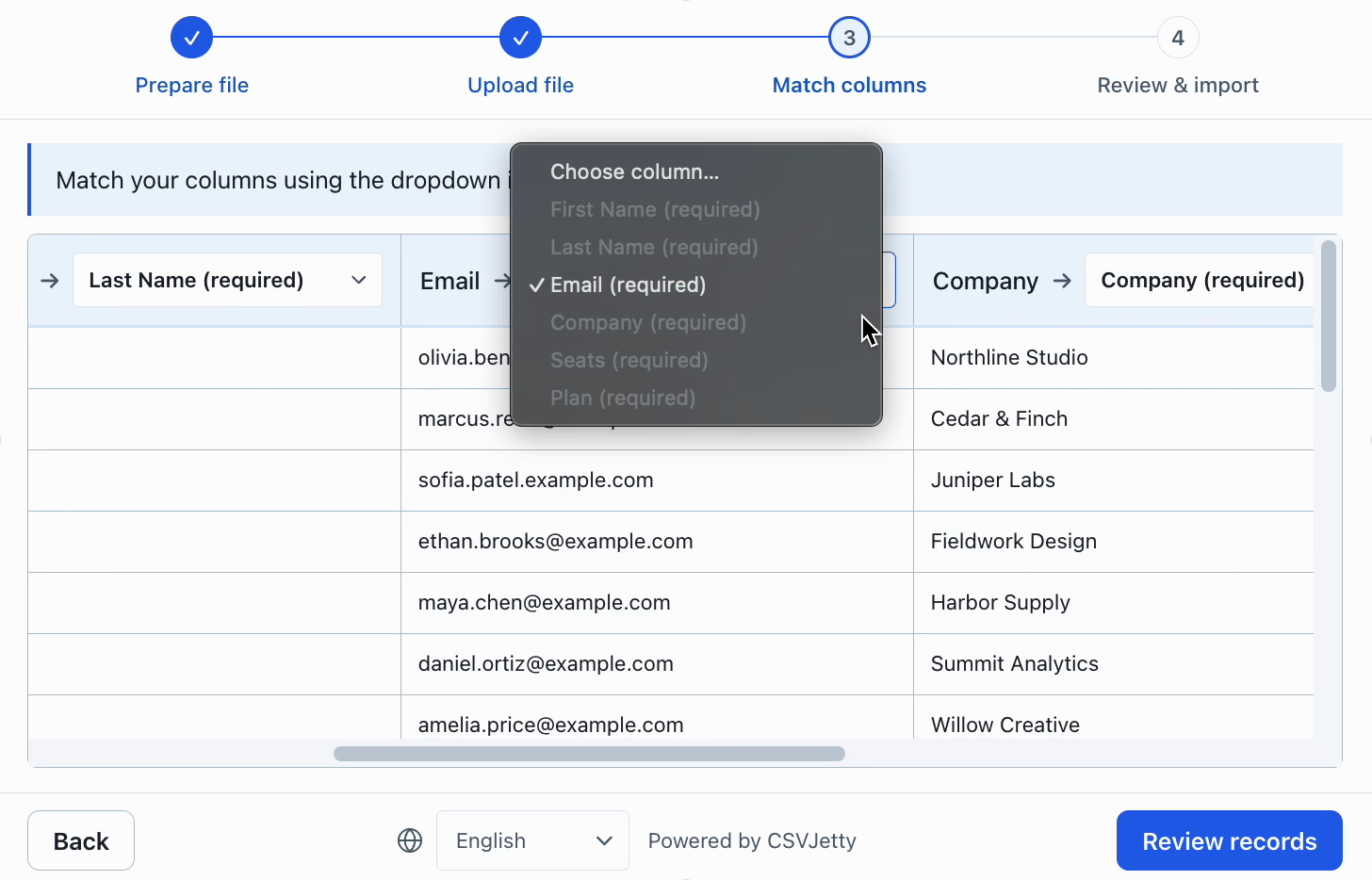
Customers review the source records and adjust destination fields in each column header. The screenshot uses the demo schema.
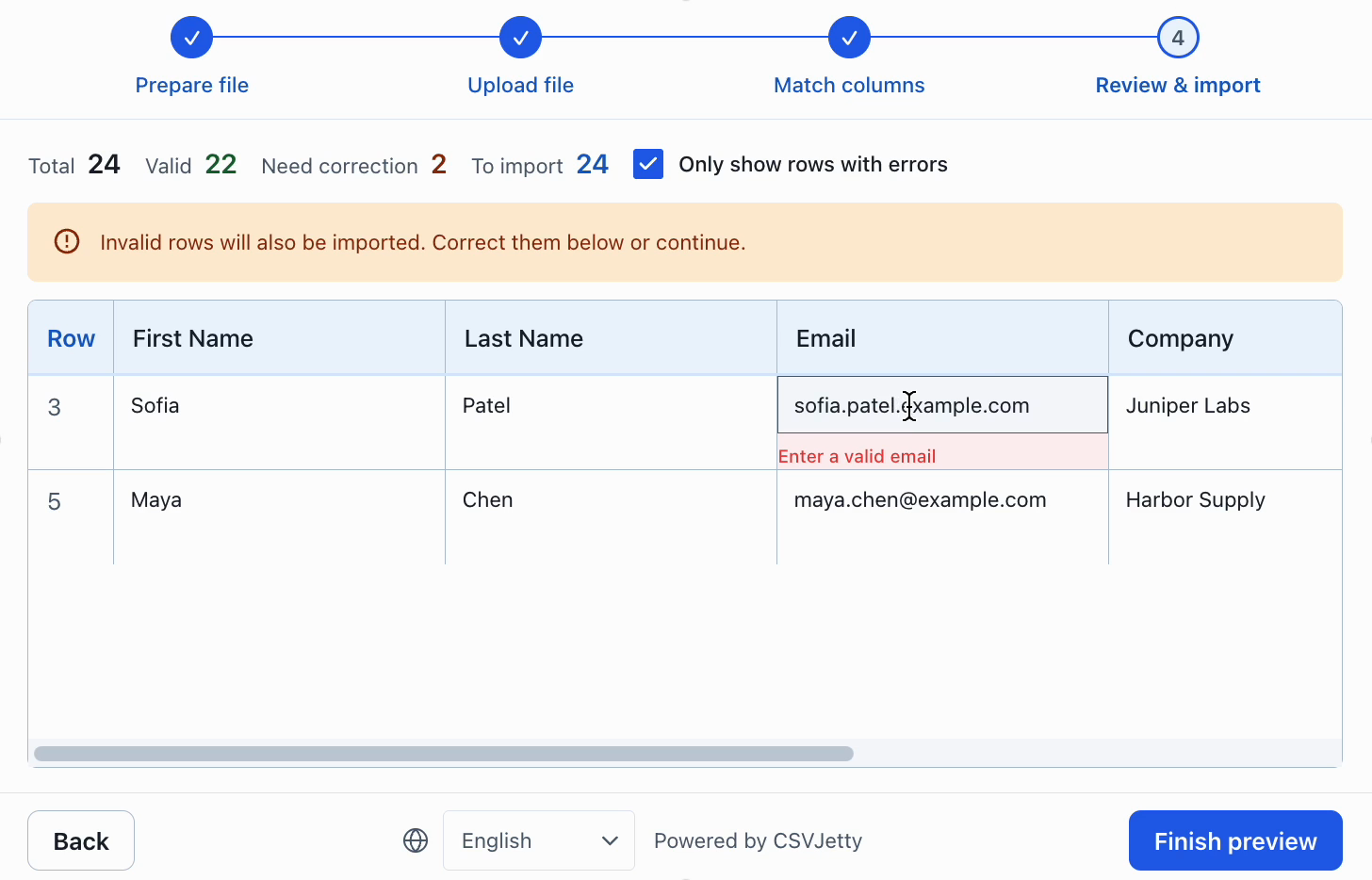
Correct invalid values in the review table. This demo permits invalid rows to continue; enable blocking or filtering if your application requires it.
## 5. Connect your save endpoint
Replace the state-based component with this version when your application has a POST /api/contacts/import endpoint. The endpoint is application-specific and is not provided by CSVJetty.
```jsx
import CSVJetty from "csvjetty";
export default function ContactImport() {
return (
{
const response = await fetch("/api/contacts/import", {
method: "POST",
headers: { "Content-Type": "application/json" },
body: JSON.stringify({ rows, importId, rowNumbers }),
});
if (!response.ok) throw new Error("Could not save contacts.");
const text = await response.text();
return text ? JSON.parse(text) : undefined;
}}
>
Import contacts
);
}
```
Authenticate and authorize requests on your server, validate records again, and save them. Use importId plus each original row number from rowNumbers as an idempotency key so a retry cannot create duplicates. Throw from onData if the batch cannot be saved.
[Read the callback payload reference](https://www.csvjetty.com/docs/reference/import-payload)
## Watch the import and configuration workflows
[CSVJetty upload, mapping and correction demo](https://www.csvjetty.com/ImporterDemo.mp4)
A 27-second dashboard preview walkthrough; preview mode does not deliver rows to your application.
[Watch the backend setup recording](https://www.csvjetty.com/BackendSetupDemo.mp4)
[Check whether CSVJetty fits your requirements](https://www.csvjetty.com/guides/choose-csv-importer)