Import CSV into PostgreSQL with Next.js and Prisma
Build an authenticated Next.js CSV import with Prisma, server-side validation, bulk inserts, and a unique constraint for safe retries.
View as MarkdownWhat this example builds
Users upload contacts, map headers, and correct invalid cells before the application writes accepted rows to PostgreSQL. Prisma handles the bulk write. A compound unique constraint prevents the same source row being inserted twice when delivery is retried.
This example targets Prisma 6 with PostgreSQL and Next.js Pages Router. It uses Supabase Auth to supply a complete authentication path; your PostgreSQL database can be hosted elsewhere. If your app already uses Prisma 7, keep its generated-client import, adapter, and configuration rather than replacing them with the Prisma 6 setup below.
1. Configure the importer and authentication
This guide uses Next.js Pages Router and an existing Supabase Auth login in the same application. Sign in through that application before opening the import page. Reuse your existing Supabase browser client if you have one; the client below uses the default persisted browser session. The importer key configures CSVJetty; it does not authenticate users to your database.
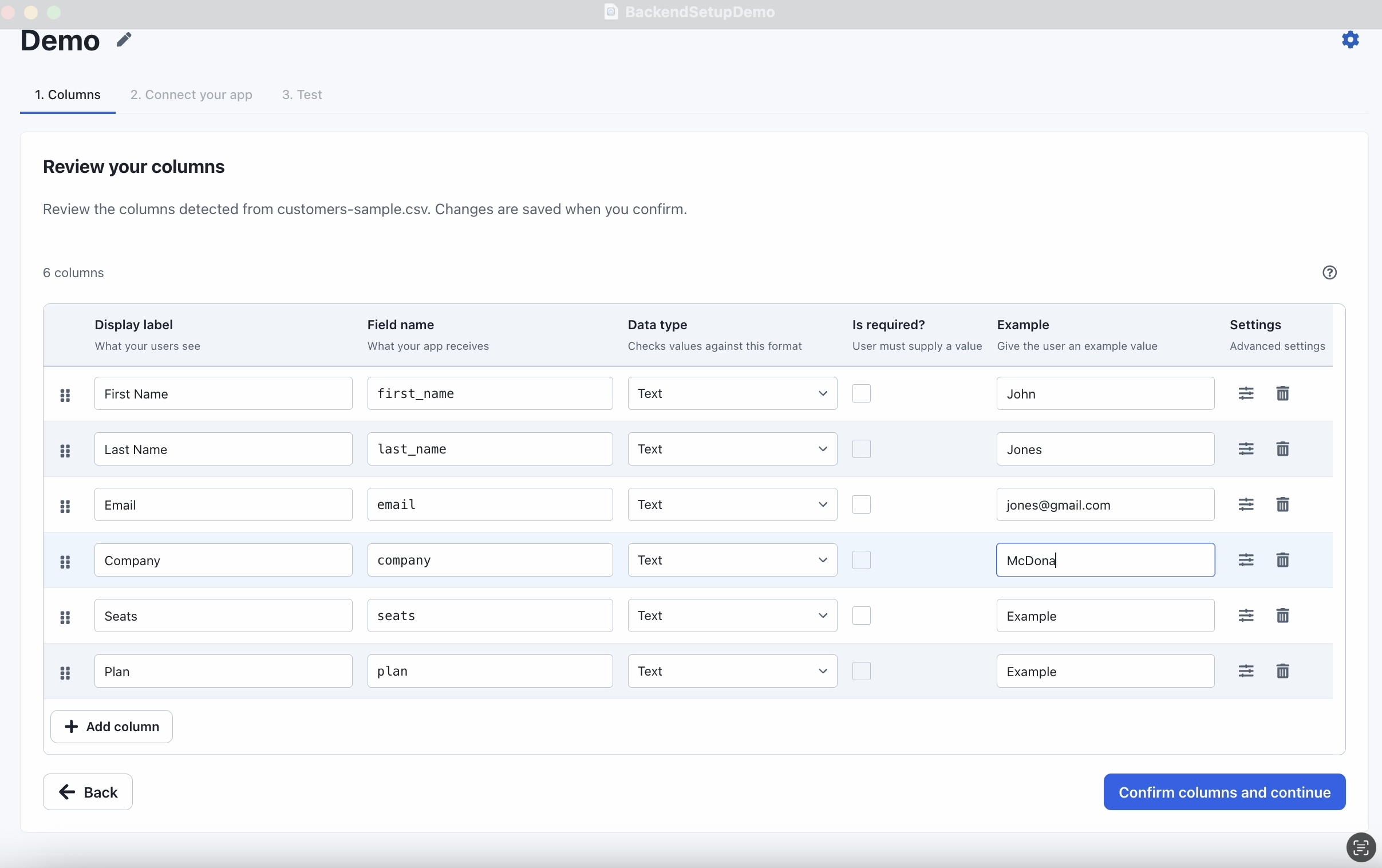
Create an importer in the CSVJetty dashboard, choose callback delivery, enable Require valid rows, and copy its key. Replace YOUR_IMPORTER_KEY in the page below. The columns prop supplies name, email, and company for this session.
npm install csvjetty @supabase/supabase-js
# .env.local
NEXT_PUBLIC_SUPABASE_URL=https://YOUR_PROJECT.supabase.co
NEXT_PUBLIC_SUPABASE_PUBLISHABLE_KEY=YOUR_PUBLISHABLE_KEY
// lib/import-supabase.js
import { createClient } from "@supabase/supabase-js";

export const importSupabase = createClient(
  process.env.NEXT_PUBLIC_SUPABASE_URL,
  process.env.NEXT_PUBLIC_SUPABASE_PUBLISHABLE_KEY,
);
2. Configure Prisma and migrate the database
npm install @prisma/client@6
npm install --save-dev prisma@6
Add DATABASE_URL to .env.local for Next.js and expose it to the Prisma CLI through your shell or your existing Prisma environment setup. Use a development database first. Keep this connection string on the server.
DATABASE_URL=postgresql://USER:PASSWORD@HOST:5432/DATABASE
// prisma/schema.prisma
// Merge these models into an existing Prisma 6 schema.
generator client {
  provider = "prisma-client-js"
}
datasource db {
  provider = "postgresql"
  url      = env("DATABASE_URL")
}
model ImportedContact {
  id        String @id @default(cuid())
  ownerId   String
  importId  String
  sourceRow Int
  name      String @db.VarChar(200)
  email     String @db.VarChar(254)
  company   String @db.VarChar(200)
  @@unique([ownerId, importId, sourceRow])
}
npx prisma migrate dev --name add_imported_contacts
npx prisma generate
Deploy the committed migration with prisma migrate deploy in your release process. Reuse an existing Prisma singleton if your application already has one.
// lib/import-prisma.js
import { PrismaClient } from "@prisma/client";
const globalForPrisma = globalThis;
export const importPrisma = globalForPrisma.importPrisma || new PrismaClient();
if (process.env.NODE_ENV !== "production") globalForPrisma.importPrisma = importPrisma;
3. Verify the user and validate the payload
These helpers run on the server. The verified user ID is the ownership boundary; imported records cannot choose their own owner.
// lib/require-import-user.js
import { createClient } from "@supabase/supabase-js";

export async function requireImportUser(req) {
  const match = /^Bearer (\S+)$/.exec(req.headers.authorization || "");
  if (!match) return null;
  const supabase = createClient(
    process.env.NEXT_PUBLIC_SUPABASE_URL,
    process.env.NEXT_PUBLIC_SUPABASE_PUBLISHABLE_KEY,
    { auth: { persistSession: false, autoRefreshToken: false } },
  );
  const { data: { user }, error } = await supabase.auth.getUser(match[1]);
  return error ? null : user;
}
// lib/validate-contact-import.js
export function validateContactImport(body) {
  if (!body || typeof body !== "object" || Array.isArray(body)) {
    throw new Error("Expected an import object.");
  }
  const { importId, rows, rowNumbers } = body;
  if (typeof importId !== "string" || !importId.length || importId.length > 200 ||
      !Array.isArray(rows) || rows.length < 1 || rows.length > 1000 ||
      !Array.isArray(rowNumbers) || rows.length !== rowNumbers.length ||
      rowNumbers.some(n => !Number.isSafeInteger(n) || n < 1) ||
      new Set(rowNumbers).size !== rowNumbers.length) {
    throw new Error("Invalid import ID, batch size, or source row numbers.");
  }
  const accepted = [];
  const errors = [];
  rows.forEach((row, index) => {
    const name = typeof row?.name === "string" ? row.name.trim() : "";
    const email = typeof row?.email === "string" ? row.email.trim().toLowerCase() : "";
    const company = row?.company == null ? "" :
      typeof row.company === "string" ? row.company.trim() : null;
    if (!name || name.length > 200 || email.length > 254 ||
        !/^[^\s@]+@[^\s@]+\.[^\s@]+$/.test(email) ||
        company === null || company.length > 200) {
      errors.push({ row: rowNumbers[index], message: "Enter a name, valid email, and company up to 200 characters." });
    } else {
      accepted.push({ name, email, company, sourceRow: rowNumbers[index] });
    }
  });
  return { importId, accepted, errors };
}
4. Bulk-insert accepted records
createMany performs the batch write atomically. PostgreSQL skips conflicts on the compound source identity. This example keeps the first saved value on retries; it does not update existing contacts. If a new import contains the same email, that is a new record. Use the duplicate-handling guide when email should be unique per customer.
// pages/api/contacts/import.js
import { importPrisma } from "../../../lib/import-prisma";
import { requireImportUser } from "../../../lib/require-import-user";
import { validateContactImport } from "../../../lib/validate-contact-import";

export const config = { api: { bodyParser: { sizeLimit: "2mb" } } };
export default async function handler(req, res) {
  res.setHeader("Cache-Control", "no-store");
  if (req.method !== "POST") {
    res.setHeader("Allow", "POST");
    return res.status(405).json({ error: "Use POST." });
  }
  try {
    const user = await requireImportUser(req);
    if (!user) return res.status(401).json({ error: "Sign in first." });
    let batch;
    try { batch = validateContactImport(req.body); }
    catch (error) { return res.status(400).json({ error: error.message }); }
    if (batch.accepted.length) {
      await importPrisma.importedContact.createMany({
        data: batch.accepted.map(contact => ({
          ...contact, ownerId: user.id, importId: batch.importId,
        })),
        skipDuplicates: true,
      });
    }
    return res.status(200).json({ errors: batch.errors });
  } catch {
    return res.status(500).json({ error: "Could not save contacts. Retry the import." });
  }
}
5. Add the upload page
// pages/import-contacts.jsx
import { useState } from "react";
import CSVJetty from "csvjetty";
import { importSupabase } from "../lib/import-supabase";

const columns = [
  { name: "name", label: "Full Name", type: "text", required: true },
  { name: "email", label: "Email", type: "email", required: true },
  { name: "company", label: "Company", type: "text" },
];

export default function ImportContacts() {
  const [status, setStatus] = useState("");
  return (
    <main>
      <h1>Import contacts</h1>
      <CSVJetty
        importerKey="YOUR_IMPORTER_KEY"
        columns={columns}
        onData={async ({ rows, rowNumbers, importId }) => {
          const { data: { session } } = await importSupabase.auth.getSession();
          if (!session) throw new Error("Sign in before importing contacts.");
          const response = await fetch("/api/contacts/import", {
            method: "POST",
            headers: {
              "Content-Type": "application/json",
              Authorization: `Bearer ${session.access_token}`,
            },
            body: JSON.stringify({ rows, rowNumbers, importId }),
          });
          const result = await response.json();
          if (!response.ok) throw new Error(result.error || "Could not save contacts.");
          return result;
        }}
        onComplete={() => setStatus("Import finished. Your accepted contacts were saved.")}
      >
        Import contacts
      </CSVJetty>
      <p role="status">{status}</p>
    </main>
  );
}
Test the complete import
Download the contacts sample →
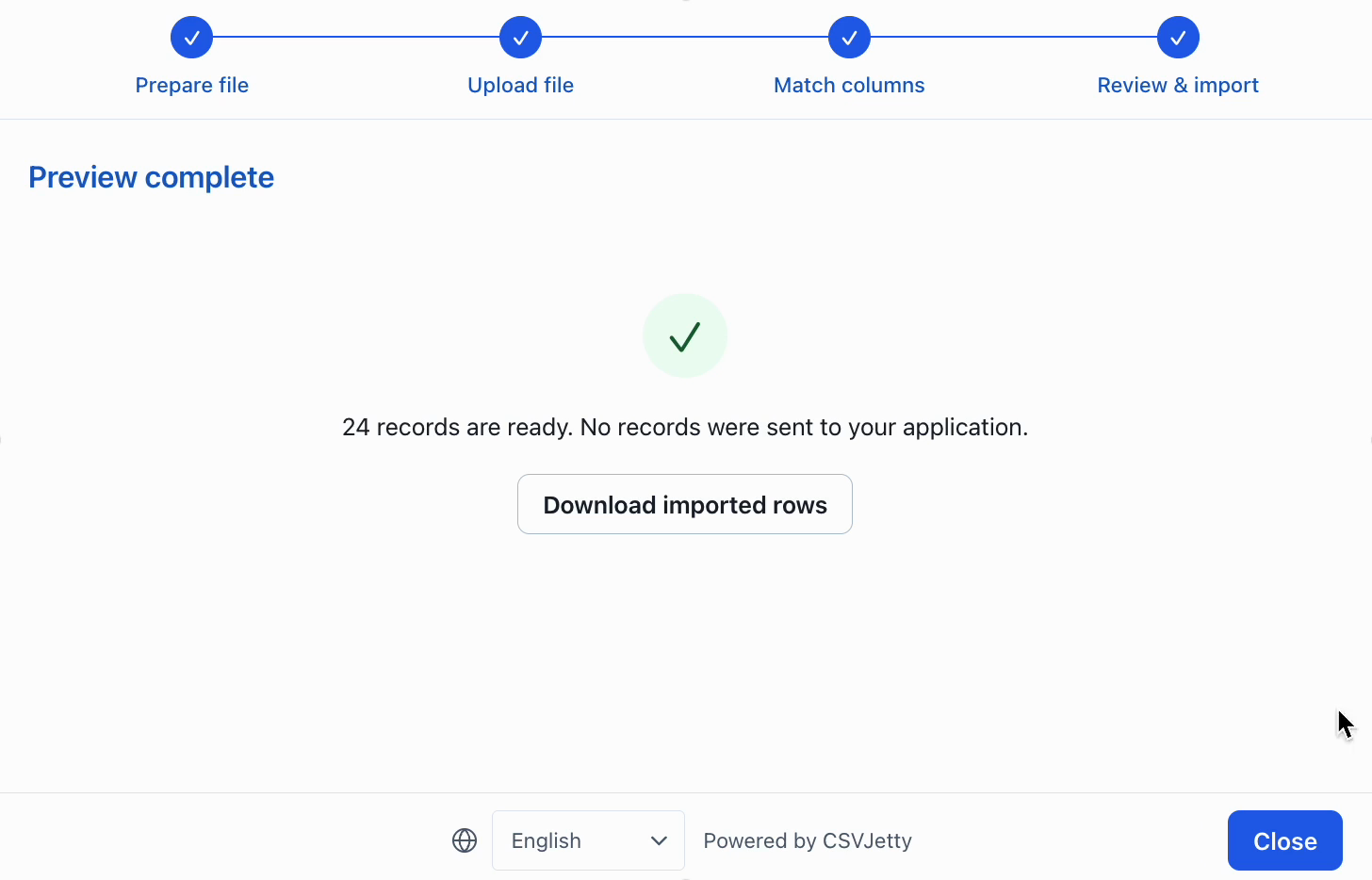
Start your app, sign in, and visit /import-contacts. Enable CSVJetty Development Mode while testing; it still delivers data, so use a test database. Upload the sample, check mappings, and finish. Confirm the records exist in your database. Repeat the same request after a simulated lost response to check retry behavior. A new file upload has a new import ID.
Source row 1 means the first data row after the header. Return row errors using rowNumbers, rather than array positions. Browser validation improves review; server validation and database constraints still decide what is saved.
Resources
Troubleshoot persistence and retries
| Symptom | Check | Resolution |
|---|---|---|
| Duplicate email creates another contact | The uniqueness rule only covers an import delivery | Add an account-scoped business key; keep delivery deduplication as a separate constraint. |
| Database operations fail in an Edge runtime | The chosen Prisma client or adapter expects another runtime | Use the runtime supported by the installed database adapter and existing application. |
Build your importer
Configure the fields your app expects, then connect CSVJetty to your application.
Create an importer →