Add CSV import to Next.js
Integrate CSVJetty with the Next.js App Router or Pages Router, review CSV records, and connect imports to your own API.
View as Markdown1. Install and configure
Create an importer in the CSVJetty dashboard, select callback delivery, and copy its importer key. Replace YOUR_IMPORTER_KEY in the examples with that key.
Configure name and email as required fields, and company as optional. Enable Require valid rows for this walkthrough.
| Display label | Field name | Data type | Required |
|---|---|---|---|
| Full name | name | Text | Yes |
| Email address | Yes | ||
| Company | company | Text | No |
npm install csvjetty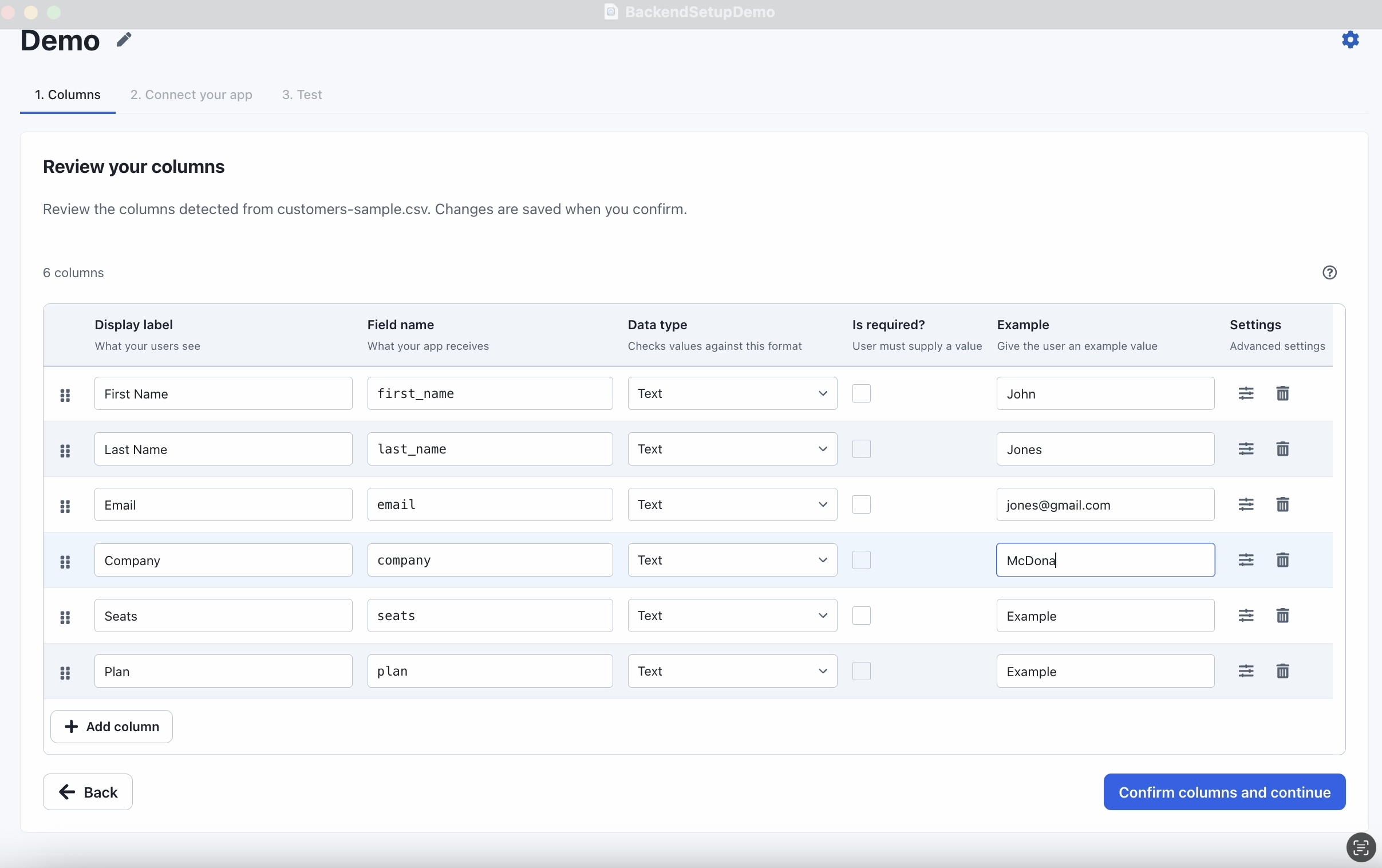
2. App Router: use a client component
Save the following as app/contacts/ContactImport.jsx. The client directive allows the component to hold state and handle the import callback.
"use client";

import { useState } from "react";
import CSVJetty from "csvjetty";

export default function ContactImport() {
  const [contacts, setContacts] = useState([]);
  return (
    <section>
      <CSVJetty
        importerKey="YOUR_IMPORTER_KEY"
        onData={({ rows }) => {
          setContacts((current) => [...current, ...rows]);
        }}
      >
        Import contacts
      </CSVJetty>
      <pre aria-live="polite">{JSON.stringify(contacts, null, 2)}</pre>
    </section>
  );
}
Render it from app/contacts/page.jsx:
import ContactImport from "./ContactImport";

export default function ContactsPage() {
  return (
    <main>
      <h1>Import contacts</h1>
      <ContactImport />
    </main>
  );
}
3. Pages Router: add a page
For an application using the Pages Router, save the following as pages/import-contacts.jsx. Choose the example for your router; you do not need both.
import { useState } from "react";
import CSVJetty from "csvjetty";

export default function ContactImport() {
  const [contacts, setContacts] = useState([]);
  return (
    <section>
      <CSVJetty
        importerKey="YOUR_IMPORTER_KEY"
        onData={({ rows }) => {
          setContacts((current) => [...current, ...rows]);
        }}
      >
        Import contacts
      </CSVJetty>
      <pre aria-live="polite">{JSON.stringify(contacts, null, 2)}</pre>
    </section>
  );
}
4. Test the workflow
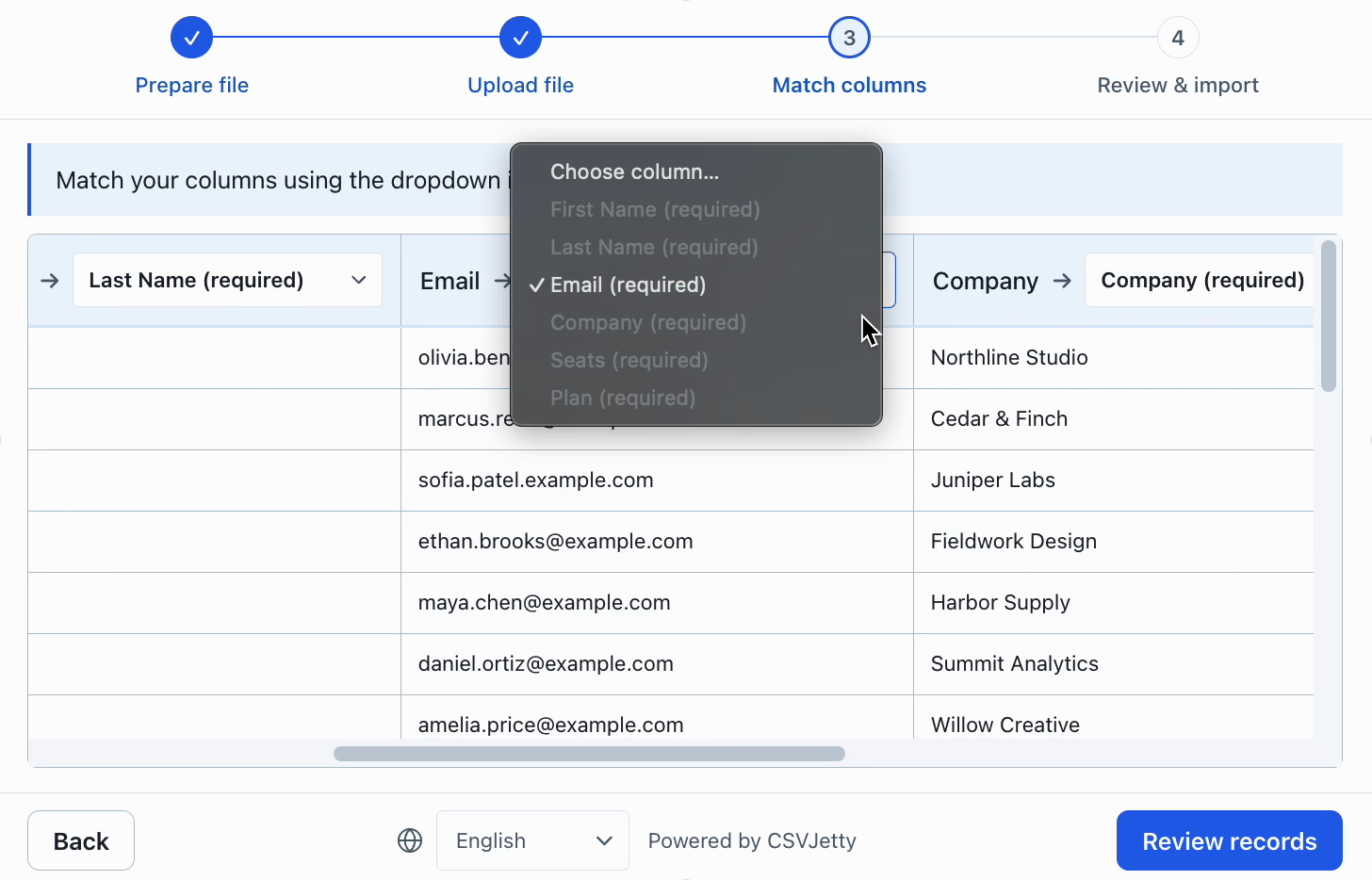
Open your new page, click Import contacts, and upload the sample. Review mappings and finish the import. The received records appear on the page. Refreshing clears this demonstration data.
Enable Development Mode on your importer while testing. Localhost does not enable it automatically. Development imports still deliver records, so use a test backend when you connect persistence.
5. Send records to your server
Once your application provides POST /api/contacts/import, use this callback component. For App Router, keep the client directive shown below. For Pages Router, the same component works without that directive.
"use client";

import CSVJetty from "csvjetty";

export default function ContactImport() {
  return (
    <CSVJetty
      importerKey="YOUR_IMPORTER_KEY"
      onData={async ({ rows, importId, rowNumbers }) => {
        const response = await fetch("/api/contacts/import", {
          method: "POST",
          headers: { "Content-Type": "application/json" },
          body: JSON.stringify({ rows, importId, rowNumbers }),
        });
        if (!response.ok) throw new Error("Could not save contacts.");
        const text = await response.text();
        return text ? JSON.parse(text) : undefined;
      }}
    >
      Import contacts
    </CSVJetty>
  );
}
The API route must use your existing authentication, authorization, validation, and database code. Return an empty JSON errors array for success, or row errors using original CSV row numbers. Use importId and rowNumbers to make writes idempotent.
{
  "errors": [
    { "row": 2, "message": "Email already exists." }
  ]
}Watch the import and configuration workflows
Build your importer
Configure the fields your app expects, then connect CSVJetty to your application.
Create an importer →