Map CSV columns to the fields your app expects
Handle CSV files with different headers using destination fields, aliases, and an editable column mapping workflow.
View as MarkdownWhy CSV headers need mapping
One customer exports Full Name. Another exports contact_name. Your application expects name. Mapping connects each source column to a stable destination field so your save code can work with one record shape.
| Uploaded header | Destination key |
|---|---|
| Full Name | name |
| Company | company |
Field labels explain the destination to users. Field names define the keys your application receives.
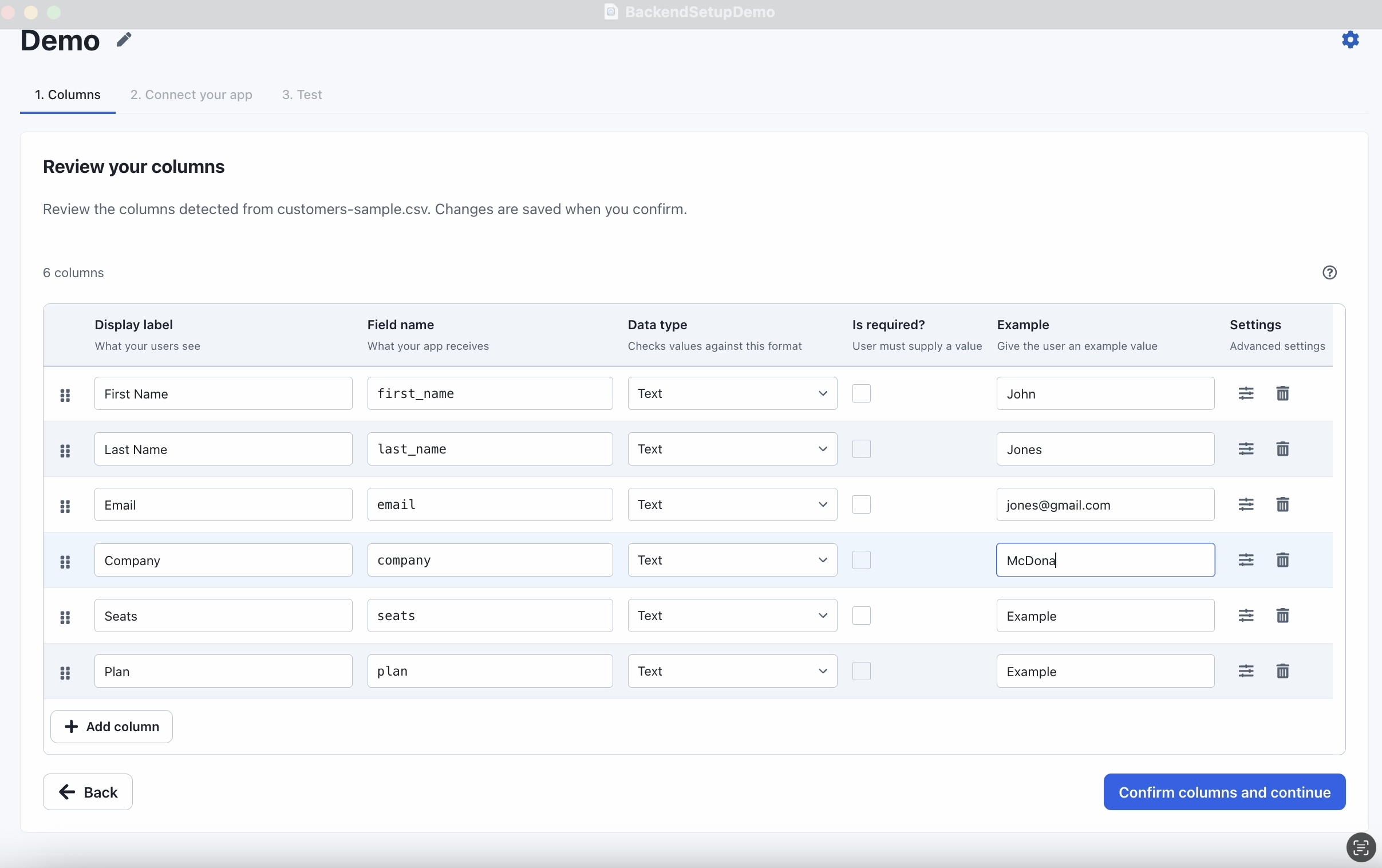
Configure destination fields
Create an importer in the CSVJetty dashboard, select callback delivery, and copy its importer key. Replace YOUR_IMPORTER_KEY in the examples with that key.
You can save fields in the dashboard or pass them through the columns prop. This example uses code so the field names, types, and aliases are visible together. Passing columns replaces the saved dashboard fields for this import session.
npm install csvjettyimport CSVJetty from "csvjetty";
const columns = [
{
"name": "name",
"label": "Full name",
"type": "text",
"required": true,
"aliases": [
"Full Name",
"contact_name"
]
},
{
"name": "email",
"label": "Email address",
"type": "email",
"required": true
},
{
"name": "company",
"label": "Company",
"type": "text",
"required": false
}
];
export default function ContactImport() {
return (
<CSVJetty
importerKey="YOUR_IMPORTER_KEY"
columns={columns}
onData={({ rows }) => console.log(rows)}
>
Import contacts
</CSVJetty>
);
}
Use aliases for familiar headers
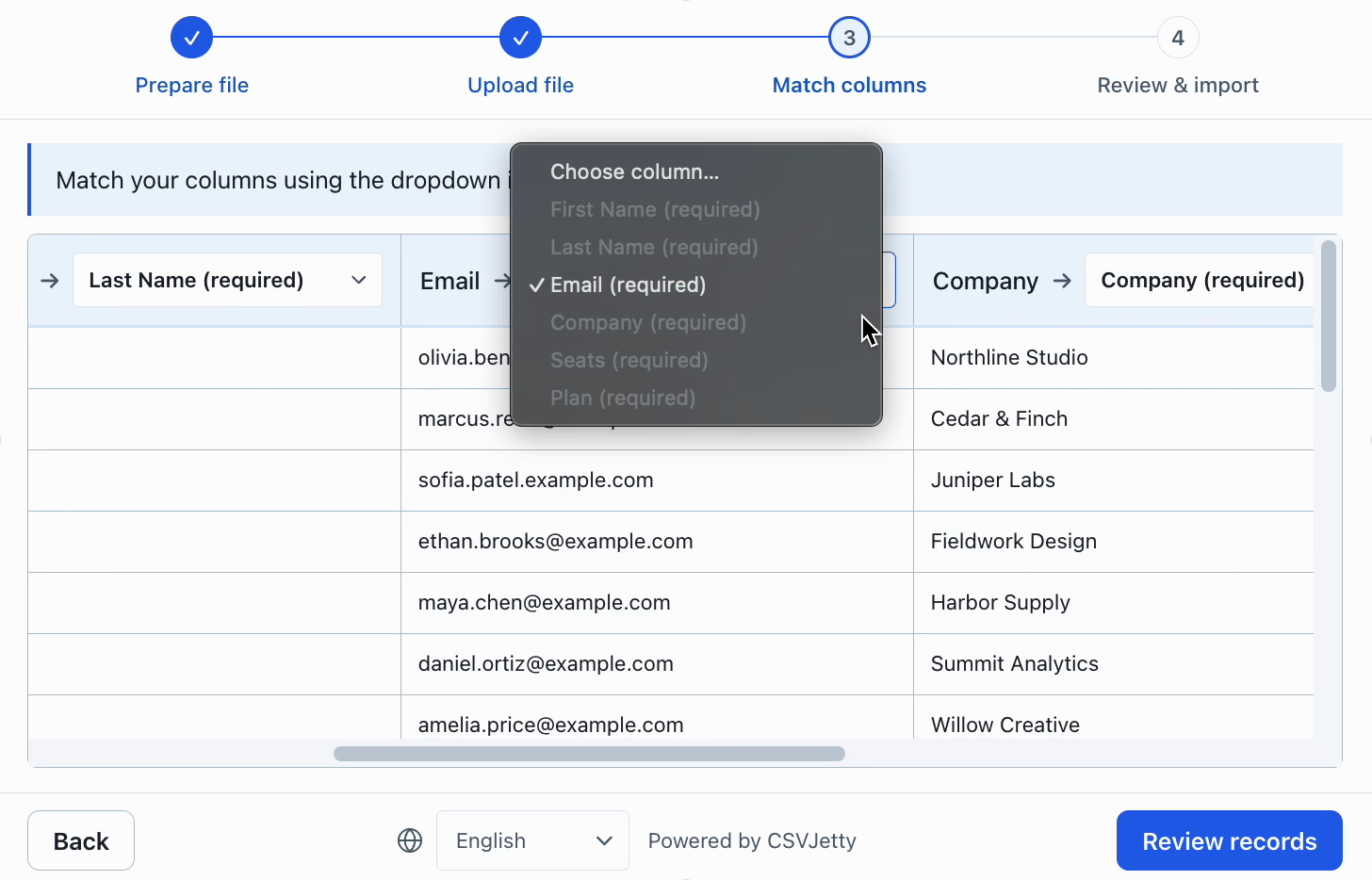
The name field includes Full Name and contact_name as aliases. Aliases help automatic matching when users upload familiar variations. Users can review and change the selected matches before completing the import.
Keep aliases specific to one destination. A vague alias such as ID can be ambiguous when an importer expects both a customer ID and an order ID.
Test mapping with a real CSV
Full Name,Email,Company
Ada Lovelace,ada@example.com,Analytical Engines
Grace Hopper,grace@example.com,Compiler Works
Katherine Johnson,katherine@example.com,Orbital Systems
Upload the sample, review each source-to-destination match, and complete the import. Check the browser console for delivered records. Rename Full Name to contact_name and upload again to test the configured alias.
Consume stable output keys
{
  "name": "Ada Lovelace",
  "email": "ada@example.com",
  "company": "Analytical Engines"
}
Use these destination keys in your application. The callback payload also includes uploadedFileHeaders and matchedColumnsMap when you need source context for an import log.
Handle missing and extra columns
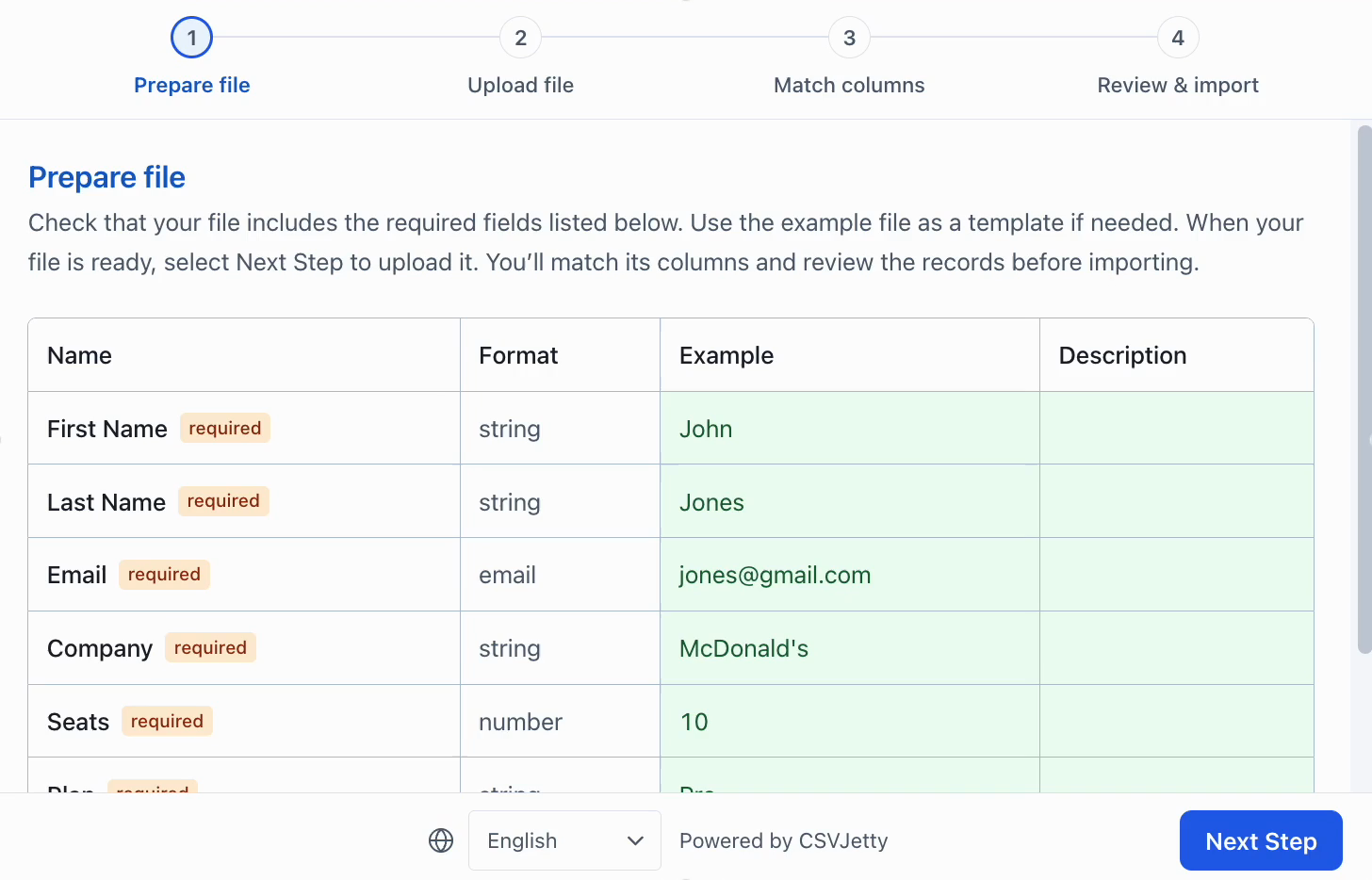
A required field needs both a column match and a nonempty value. An optional field lets users import files that do not contain that information. Decide which fields your application truly needs before marking them required.
If unmatched-column delivery is enabled, extra values can arrive in each record under _unmatched. Check your importer settings before relying on those values.
Use a different schema for each import session
The columns prop replaces dashboard fields for the session. Supply the whole destination schema, not only the changed field. Build that schema from the application’s known entity configuration, rather than treating arbitrary uploaded headers as trusted database column names.
const schemas = {
  contacts: [
    { name: "name", label: "Full name", type: "text", required: true, aliases: ["Contact Name"] },
    { name: "email", label: "Email", type: "email", required: true, aliases: ["Work Email"] },
  ],
  products: [
    { name: "sku", label: "SKU", type: "text", required: true, aliases: ["Item Code"] },
    { name: "name", label: "Product name", type: "text", required: true },
  ],
};

// entity is an application-owned choice. Remount when it changes.
<CSVJetty key={entity} importerKey="YOUR_IMPORTER_KEY"
  columns={schemas[entity]} onData={saveForSelectedEntity}>
  Import CSV
</CSVJetty>;
saveForSelectedEntity must be your authenticated save handler, not a database client exposed to the browser. Close the current import before switching entity types; do not change its expected schema mid-session.
Build your importer
Configure the fields your app expects, then connect CSVJetty to your application.
Create an importer →