Add CSV import to a v0-generated Next.js app
Add a CSV importer to a v0-generated Next.js app with a client component, existing UI conventions, an agent prompt and validation samples.
View as MarkdownWhat you will build
Use the generated app’s current architecture. For a Next.js App Router project, the importer must render from a client component. Database code must remain in the server layer. A design that displays an upload button but never handles its callback is only a mockup; the example below displays actual callback records.
CSVJetty supports React 18/19 and CSV files up to 20 MB. The free plan permits 10,000 rows per upload; paid permits 20,000. Configure at most 30 destination fields. Callback mode keeps row data out of CSVJetty servers while configuration and import metadata still use the hosted service. It is not a fully offline or self-hosted importer.
Use a client boundary in a v0 Next.js application
Keep the route as a Server Component when that is how the app is structured. Import the complete ContactPreview client component into the page; the upload interaction and callback state belong inside that client boundary. The reusable component below already begins with use client. A server page should not pass an ordinary onData function across that boundary.
// app/contacts/page.jsx — adapt the import to your project’s paths.
import ContactPreview from "@/components/ContactPreview";

export default function ContactsPage() {
  return (
    <main>
      <h1>Import contacts</h1>
      <ContactPreview />
    </main>
  );
}
To persist records, put the save callback in a client component and call the existing authenticated route handler or server action. Reuse whichever database integration the v0 app already uses. Do not import a Neon connection, ORM database instance, or service-role client into the importer’s browser module.
v0’s preview uses Development environment variables. Vercel Preview deployments and Production deployments have separate scopes. A public NEXT_PUBLIC_ value is bundled at build time; set it in the relevant environment before rebuilding. Never prefix a database secret with NEXT_PUBLIC_.
Configure CSVJetty first
Create an importer in the CSVJetty dashboard, choose OnData Callback, and copy its public importer key. Enable Require valid rows so customers must fix browser validation errors before delivery. Development Mode still calls your save handler; use test data and a test database. Dashboard preview does not deliver rows.
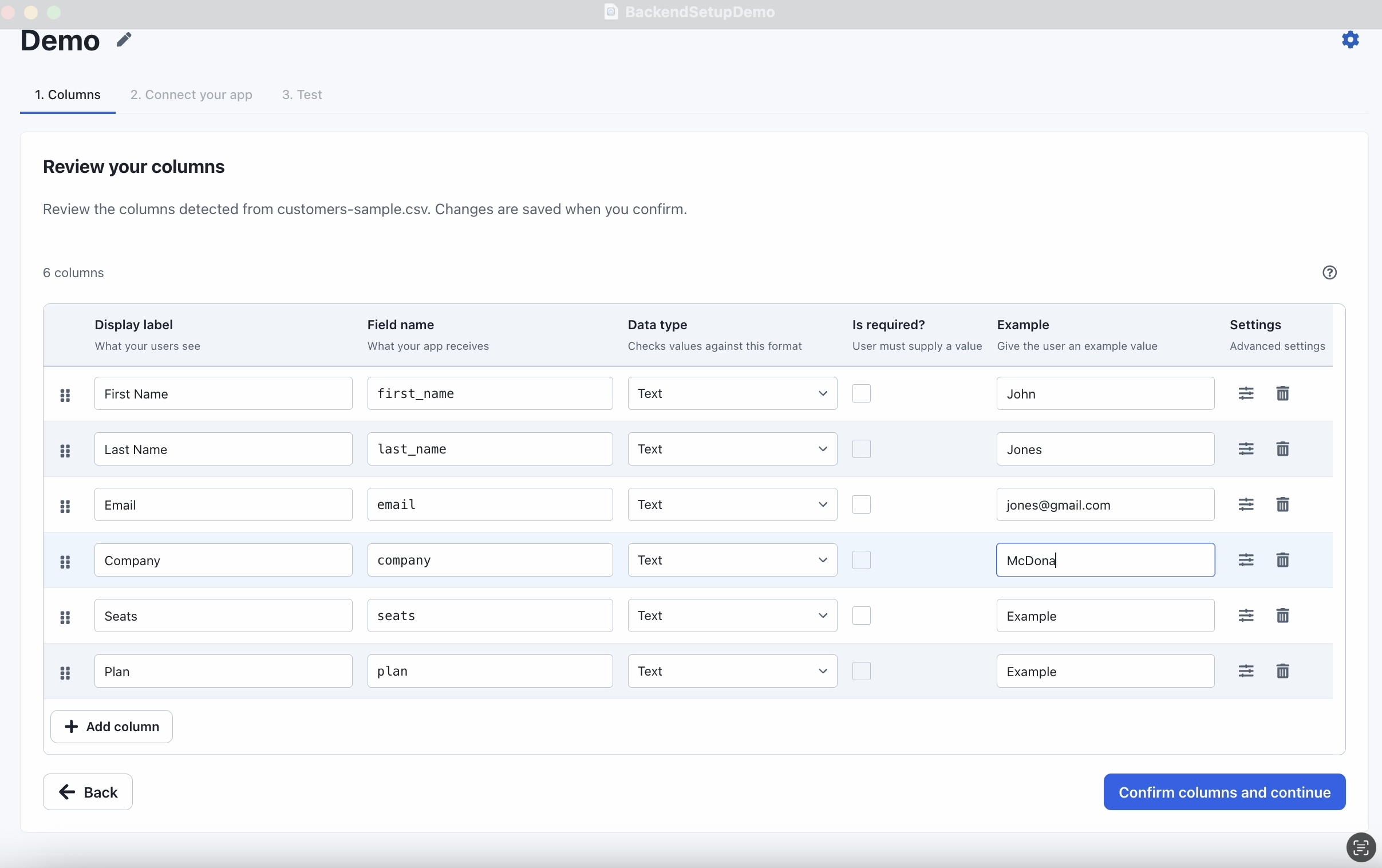
Paste this prompt into v0
Replace YOUR_IMPORTER_KEY before using the prompt. Let the agent inspect the existing app and preserve its architecture.
Inspect this v0 project’s Next.js router, package manager, UI components, authentication and database integration. Install csvjetty. Add a client component using the default CSVJetty export and public importerKey YOUR_IMPORTER_KEY. Configure name (required text), email (required email) and company (optional text). Render it on the existing contacts page without making the whole page a client component unnecessarily. Handle onData({ rows, rowNumbers, importId }); await the existing authorized route or server action before reporting success. Keep database modules and private environment variables on the server. Start with the labeled preview component if persistence does not exist, and report that limitation. Test a production build, invalid email correction, wrong-user access and failed-save retry. Reuse the current UI instead of adding a second component system.
A complete browser preview
Save the component below as components/ContactPreview.jsx. In an App Router page, import it from the server-rendered page and pass only serializable props such as the public importer key. Do not pass a database client across that boundary. If v0 created a Vite app instead, render the React component normally and omit Next-specific instructions.
npm install csvjetty
Download all example files (ZIP) →
File: components/ContactPreview.jsx
"use client";

import { useRef, useState } from "react";
import CSVJetty from "csvjetty";

export const contactColumns = [
  { name: "name", label: "Full name", type: "text", required: true,
    aliases: ["Full Name", "Contact Name"] },
  { name: "email", label: "Email", type: "email", required: true,
    aliases: ["Email Address", "Work Email"] },
  { name: "company", label: "Company", type: "text" },
];

export default function ContactPreview({ importerKey = "YOUR_IMPORTER_KEY" }) {
  const records = useRef(new Map());
  const [rows, setRows] = useState([]);
  const [message, setMessage] = useState("");

  return (
    <section aria-labelledby="contact-import-title">
      <h2 id="contact-import-title">Import contacts</h2>
      <p>This example keeps records in memory. Reloading clears them.</p>
      <CSVJetty
        importerKey={importerKey}
        columns={contactColumns}
        accentColor="#2563eb"
        onData={({ rows: batch, importId, rowNumbers }) => {
          batch.forEach((row, index) => {
            records.current.set(`${importId}:${rowNumbers[index]}`, row);
          });
          setRows([...records.current.values()]);
          return { errors: [] };
        }}
        onComplete={({ accepted, rejected }) => {
          setMessage(`Review finished: ${accepted} accepted, ${rejected} rejected. Records below are not saved to a database.`);
        }}
      >
        Import contacts
      </CSVJetty>
      <p role="status">{message}</p>
      <div style={{ overflowX: "auto" }}>
        <table>
          <caption>Prepared contacts in this browser session</caption>
          <thead><tr><th scope="col">Name</th><th scope="col">Email</th><th scope="col">Company</th></tr></thead>
          <tbody>{rows.map((row, index) => (
            <tr key={index}><td>{row.name}</td><td>{row.email}</td><td>{row.company}</td></tr>
          ))}</tbody>
        </table>
      </div>
    </section>
  );
}
Upload, map and correct a real file
Duplicate and invalid contacts sample →
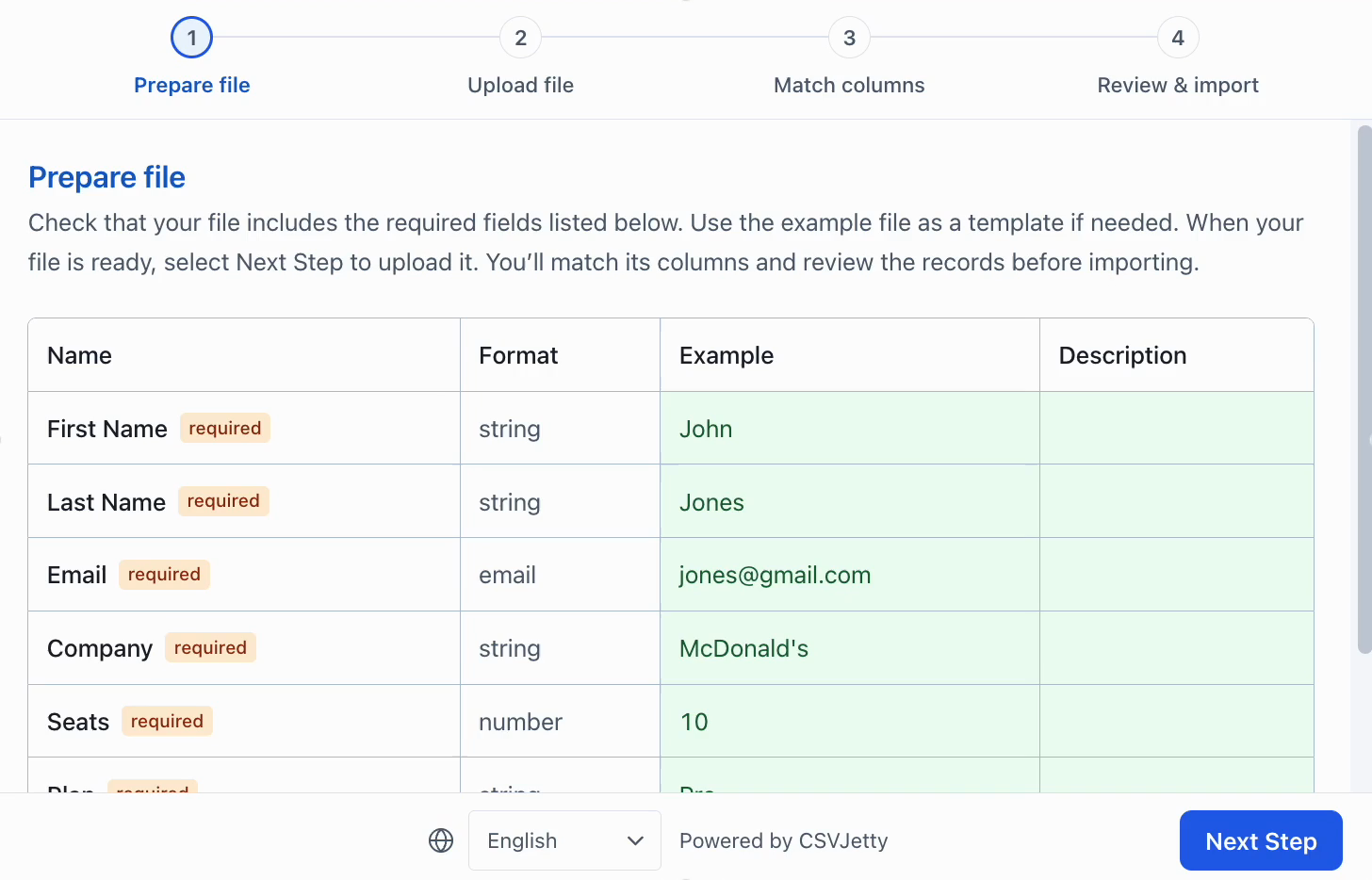
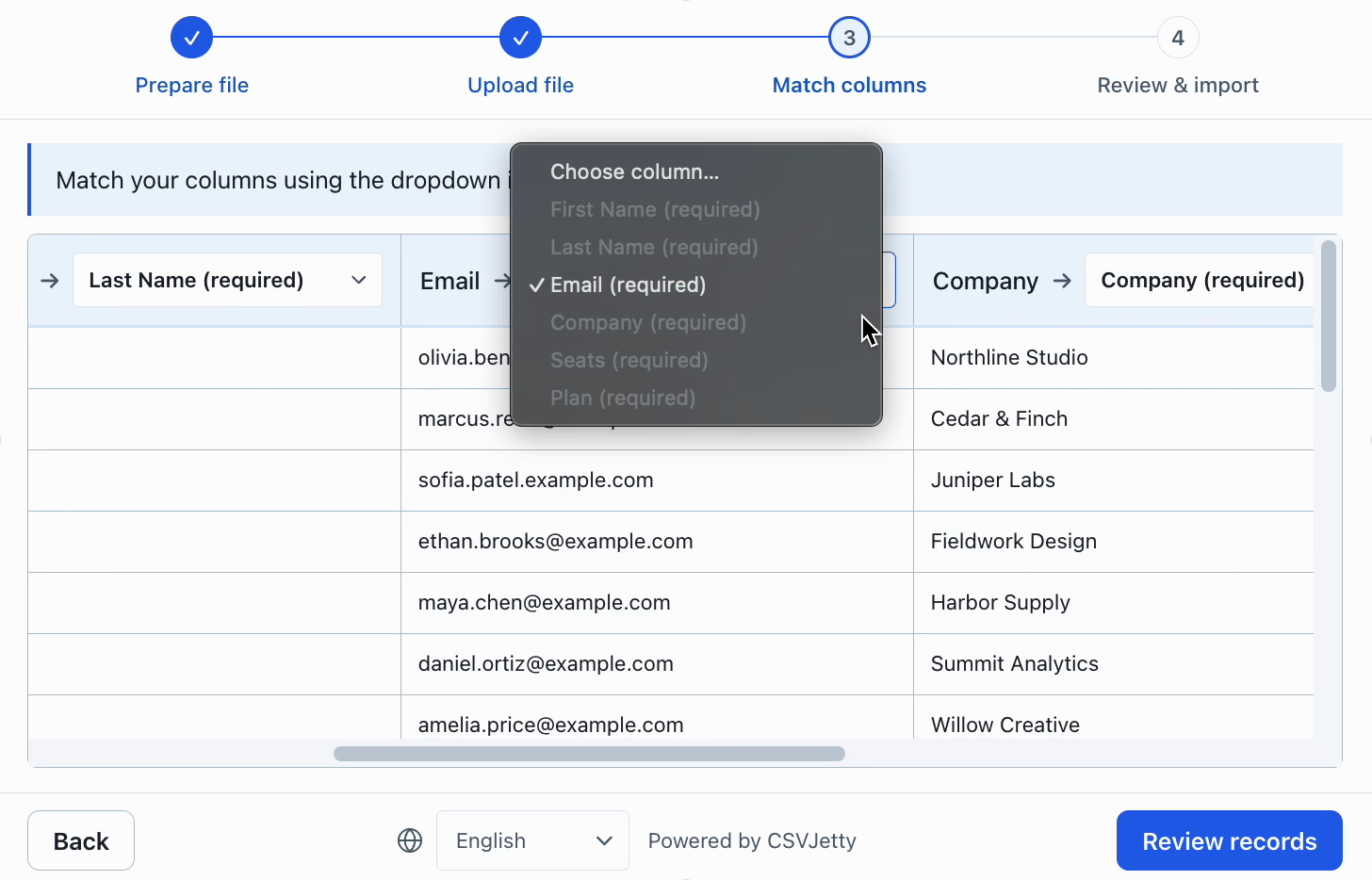
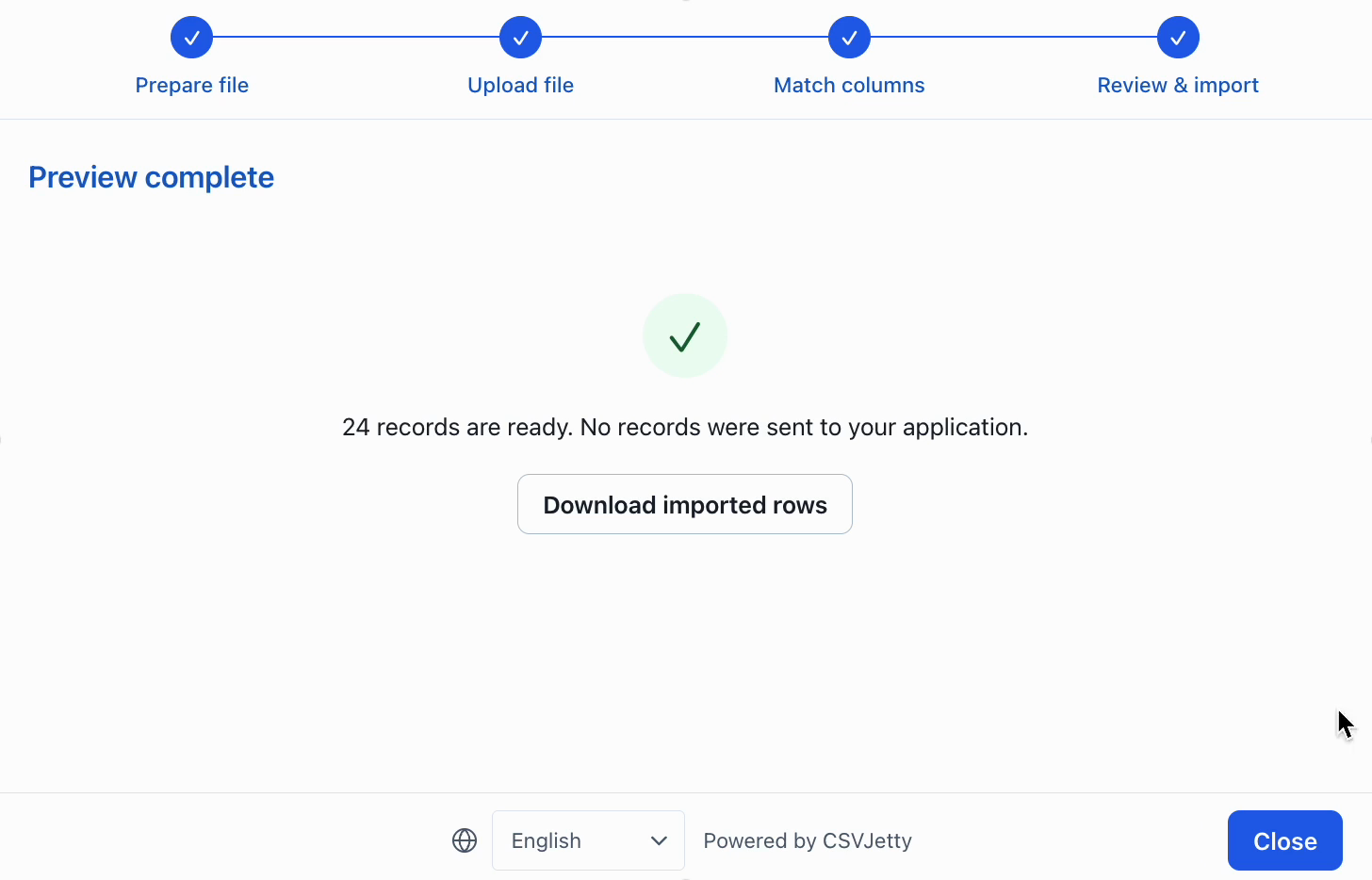
Upload the clean sample and check the resulting field names. Upload the invalid sample and fix the email. Rename a header and map it manually. Close during an unfinished import and check the discard confirmation. If saving is connected, force a save failure, retry, and verify the database instead of relying on the modal’s completion message.
Connect the real save path
The Map in the preview uses importId plus original row number to avoid showing the same delivery twice. It does not deduplicate a second file upload by email, and nothing survives a reload. For persistence, use the database’s unique constraint and account ownership rules. Treat onComplete counts as importer outcomes, not proof that records were newly inserted.
Customer uploads into Supabase →
Watch the CSV upload and correction flow
Troubleshoot v0 and Vercel deployments
| Error or symptom | Cause to investigate | Fix |
|---|---|---|
| Event handlers cannot be passed to Client Component props | A server page is passing a regular callback to the importer | Move the callback and importer into the same client module. |
| Import works in v0 but not the deployment | Development and Preview/Production configuration differs | Set variables in the deployment’s scope and rebuild. |
| A database module appears in the browser bundle | The client component imports server persistence directly | Call the existing authenticated server endpoint or server action instead. |
| The generated upload screen is only a design | No installed csvjetty component or onData handler | Ask v0 to wire the real component and display callback results before adding persistence. |
| Page loads but the save returns unauthorized | Server authentication is missing or expired | Use the project’s existing session checks and return an actionable error to the importer. |
Resources
Build your importer
Configure the fields your app expects, then connect CSVJetty to your application.
Create an importer →