Import CSV into Supabase with React and Next.js
Upload a CSV, map columns, correct invalid values, and save contacts to Supabase with authenticated writes and Row Level Security.
View as MarkdownFrom CSV upload to Supabase records
This guide covers the React-to-Supabase delivery path: receive prepared CSV rows and write them using your existing Supabase setup. For a complete customer-facing upload screen with ownership policies and duplicate choices, use the customer upload guide below. For Lovable-specific setup, use the dedicated Lovable integration.
A CSV parser produces arrays. A database import also needs column mapping, data review, authorization, and retry behavior. In this tutorial CSVJetty handles the upload and review; a Next.js API route validates the records again and saves them under the signed-in Supabase user.
The example stores one contact per source row per import. Repeating a delivery updates that same record. Uploading the file again creates a new import and can create another contact with the same email; business-level deduplication is a separate rule.
1. Configure the importer and authentication
This guide uses Next.js Pages Router and an existing Supabase Auth login in the same application. Sign in through that application before opening the import page. Reuse your existing Supabase browser client if you have one; the client below uses the default persisted browser session. The importer key configures CSVJetty; it does not authenticate users to your database.
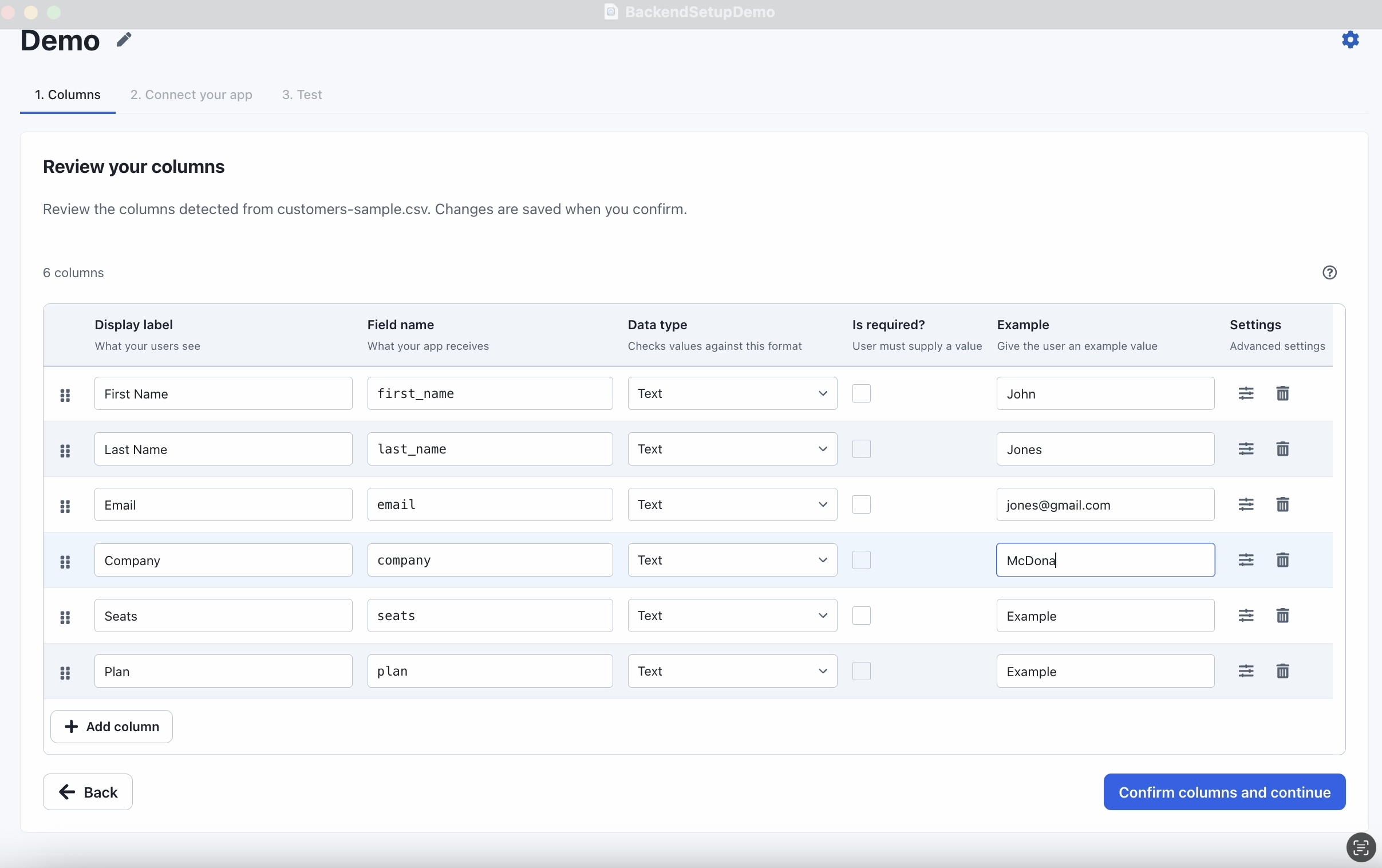
Create an importer in the CSVJetty dashboard, choose callback delivery, enable Require valid rows, and copy its key. Replace YOUR_IMPORTER_KEY in the page below. The columns prop supplies name, email, and company for this session.
npm install csvjetty @supabase/supabase-js
# .env.local
NEXT_PUBLIC_SUPABASE_URL=https://YOUR_PROJECT.supabase.co
NEXT_PUBLIC_SUPABASE_PUBLISHABLE_KEY=YOUR_PUBLISHABLE_KEY
// lib/import-supabase.js
import { createClient } from "@supabase/supabase-js";

export const importSupabase = createClient(
  process.env.NEXT_PUBLIC_SUPABASE_URL,
  process.env.NEXT_PUBLIC_SUPABASE_PUBLISHABLE_KEY,
);
2. Create the table and ownership policies
Run this SQL once in a development Supabase project. The API uses the caller’s access token and a publishable key, so RLS applies to every write. No service-role key is needed.
create table public.imported_contacts (
  id uuid primary key default gen_random_uuid(),
  owner_id uuid not null references auth.users(id) on delete cascade,
  import_id text not null,
  source_row integer not null check (source_row > 0),
  name text not null check (length(name) between 1 and 200),
  email text not null check (length(email) between 3 and 254),
  company text not null default '' check (length(company) <= 200),
  unique (owner_id, import_id, source_row)
);
alter table public.imported_contacts enable row level security;
revoke all on public.imported_contacts from anon, authenticated;
grant select, insert, update on public.imported_contacts to authenticated;

create policy "Read own imported contacts"
on public.imported_contacts for select to authenticated
using ((select auth.uid()) = owner_id);
create policy "Insert own imported contacts"
on public.imported_contacts for insert to authenticated
with check ((select auth.uid()) = owner_id);
create policy "Update own imported contacts"
on public.imported_contacts for update to authenticated
using ((select auth.uid()) = owner_id)
with check ((select auth.uid()) = owner_id);
3. Validate records on the server
Save this helper. It accepts at most 1,000 rows per request, trims fields, normalizes email casing, and preserves source row numbers. The email check is a basic format check, not proof that an address exists.
// lib/validate-contact-import.js
export function validateContactImport(body) {
  if (!body || typeof body !== "object" || Array.isArray(body)) {
    throw new Error("Expected an import object.");
  }
  const { importId, rows, rowNumbers } = body;
  if (typeof importId !== "string" || !importId.length || importId.length > 200 ||
      !Array.isArray(rows) || rows.length < 1 || rows.length > 1000 ||
      !Array.isArray(rowNumbers) || rows.length !== rowNumbers.length ||
      rowNumbers.some(n => !Number.isSafeInteger(n) || n < 1) ||
      new Set(rowNumbers).size !== rowNumbers.length) {
    throw new Error("Invalid import ID, batch size, or source row numbers.");
  }
  const accepted = [];
  const errors = [];
  rows.forEach((row, index) => {
    const name = typeof row?.name === "string" ? row.name.trim() : "";
    const email = typeof row?.email === "string" ? row.email.trim().toLowerCase() : "";
    const company = row?.company == null ? "" :
      typeof row.company === "string" ? row.company.trim() : null;
    if (!name || name.length > 200 || email.length > 254 ||
        !/^[^\s@]+@[^\s@]+\.[^\s@]+$/.test(email) ||
        company === null || company.length > 200) {
      errors.push({ row: rowNumbers[index], message: "Enter a name, valid email, and company up to 200 characters." });
    } else {
      accepted.push({ name, email, company, sourceRow: rowNumbers[index] });
    }
  });
  return { importId, accepted, errors };
}
4. Save accepted rows through an authenticated endpoint
The owner ID comes from the verified access token. The server deliberately ignores any owner ID supplied in uploaded data. Invalid records return row errors; a database failure fails the request so the user can retry.
// pages/api/contacts/import.js
import { createClient } from "@supabase/supabase-js";
import { validateContactImport } from "../../../lib/validate-contact-import";

export const config = { api: { bodyParser: { sizeLimit: "2mb" } } };

export default async function handler(req, res) {
  res.setHeader("Cache-Control", "no-store");
  if (req.method !== "POST") {
    res.setHeader("Allow", "POST");
    return res.status(405).json({ error: "Use POST." });
  }
  const token = /^Bearer (\S+)$/.exec(req.headers.authorization || "")?.[1];
  if (!token) return res.status(401).json({ error: "Sign in first." });
  try {
    const supabase = createClient(
      process.env.NEXT_PUBLIC_SUPABASE_URL,
      process.env.NEXT_PUBLIC_SUPABASE_PUBLISHABLE_KEY,
      {
        global: { headers: { Authorization: `Bearer ${token}` } },
        auth: { persistSession: false, autoRefreshToken: false },
      },
    );
    const { data: { user }, error: authError } = await supabase.auth.getUser(token);
    if (authError || !user) return res.status(401).json({ error: "Sign in again." });
    let batch;
    try { batch = validateContactImport(req.body); }
    catch (error) { return res.status(400).json({ error: error.message }); }
    if (batch.accepted.length) {
      const { error } = await supabase.from("imported_contacts").upsert(
        batch.accepted.map(({ sourceRow, ...contact }) => ({
          ...contact, owner_id: user.id,
          import_id: batch.importId, source_row: sourceRow,
        })),
        { onConflict: "owner_id,import_id,source_row" },
      );
      if (error) throw error;
    }
    return res.status(200).json({ errors: batch.errors });
  } catch {
    return res.status(500).json({ error: "Could not save contacts. Retry the import." });
  }
}
5. Add the import page
// pages/import-contacts.jsx
import { useState } from "react";
import CSVJetty from "csvjetty";
import { importSupabase } from "../lib/import-supabase";

const columns = [
  { name: "name", label: "Full Name", type: "text", required: true },
  { name: "email", label: "Email", type: "email", required: true },
  { name: "company", label: "Company", type: "text" },
];

export default function ImportContacts() {
  const [status, setStatus] = useState("");
  return (
    <main>
      <h1>Import contacts</h1>
      <CSVJetty
        importerKey="YOUR_IMPORTER_KEY"
        columns={columns}
        onData={async ({ rows, rowNumbers, importId }) => {
          const { data: { session } } = await importSupabase.auth.getSession();
          if (!session) throw new Error("Sign in before importing contacts.");
          const response = await fetch("/api/contacts/import", {
            method: "POST",
            headers: {
              "Content-Type": "application/json",
              Authorization: `Bearer ${session.access_token}`,
            },
            body: JSON.stringify({ rows, rowNumbers, importId }),
          });
          const result = await response.json();
          if (!response.ok) throw new Error(result.error || "Could not save contacts.");
          return result;
        }}
        onComplete={() => setStatus("Import finished. Your accepted contacts were saved.")}
      >
        Import contacts
      </CSVJetty>
      <p role="status">{status}</p>
    </main>
  );
}
Test the complete import
Download the contacts sample →
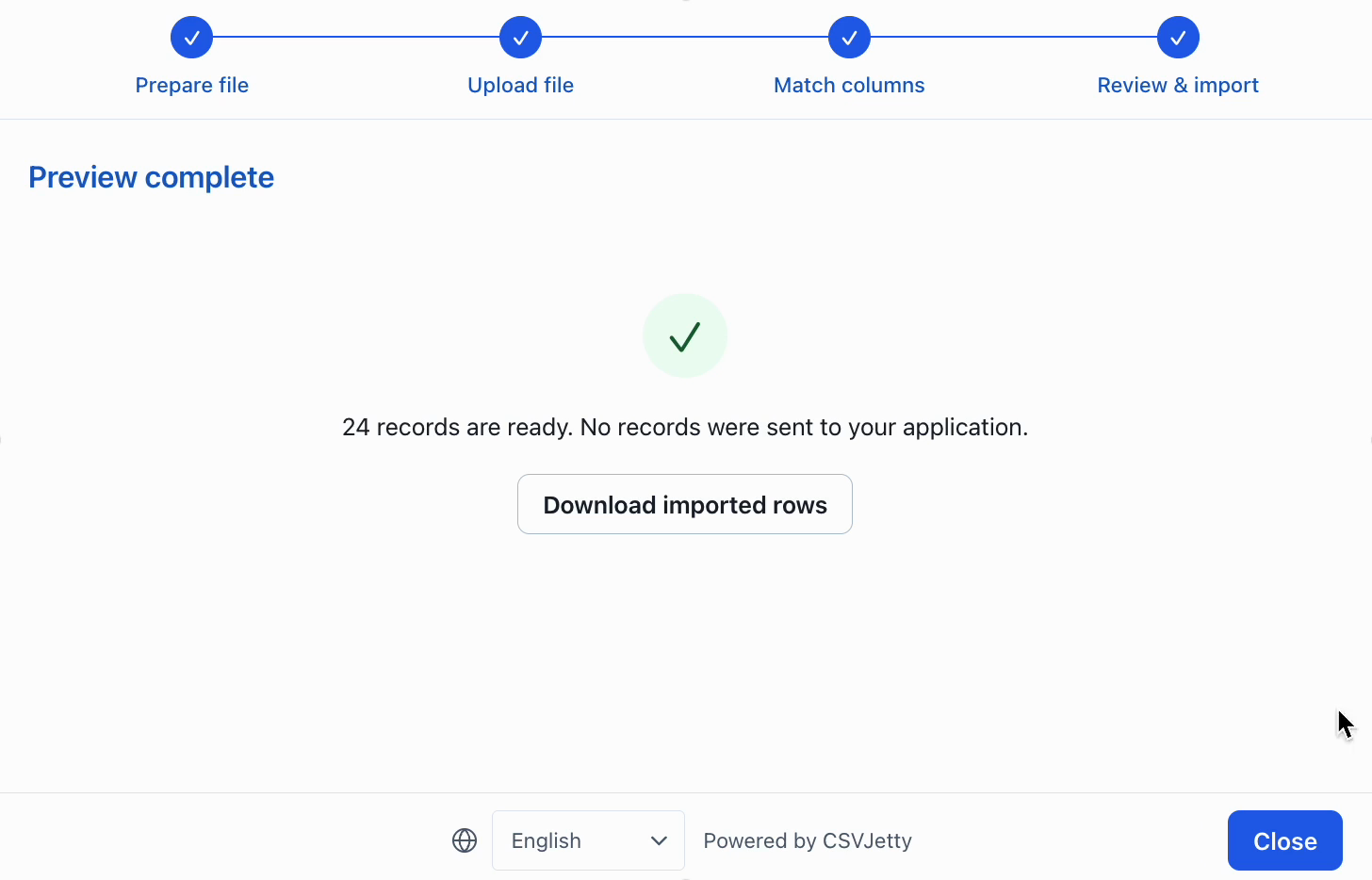
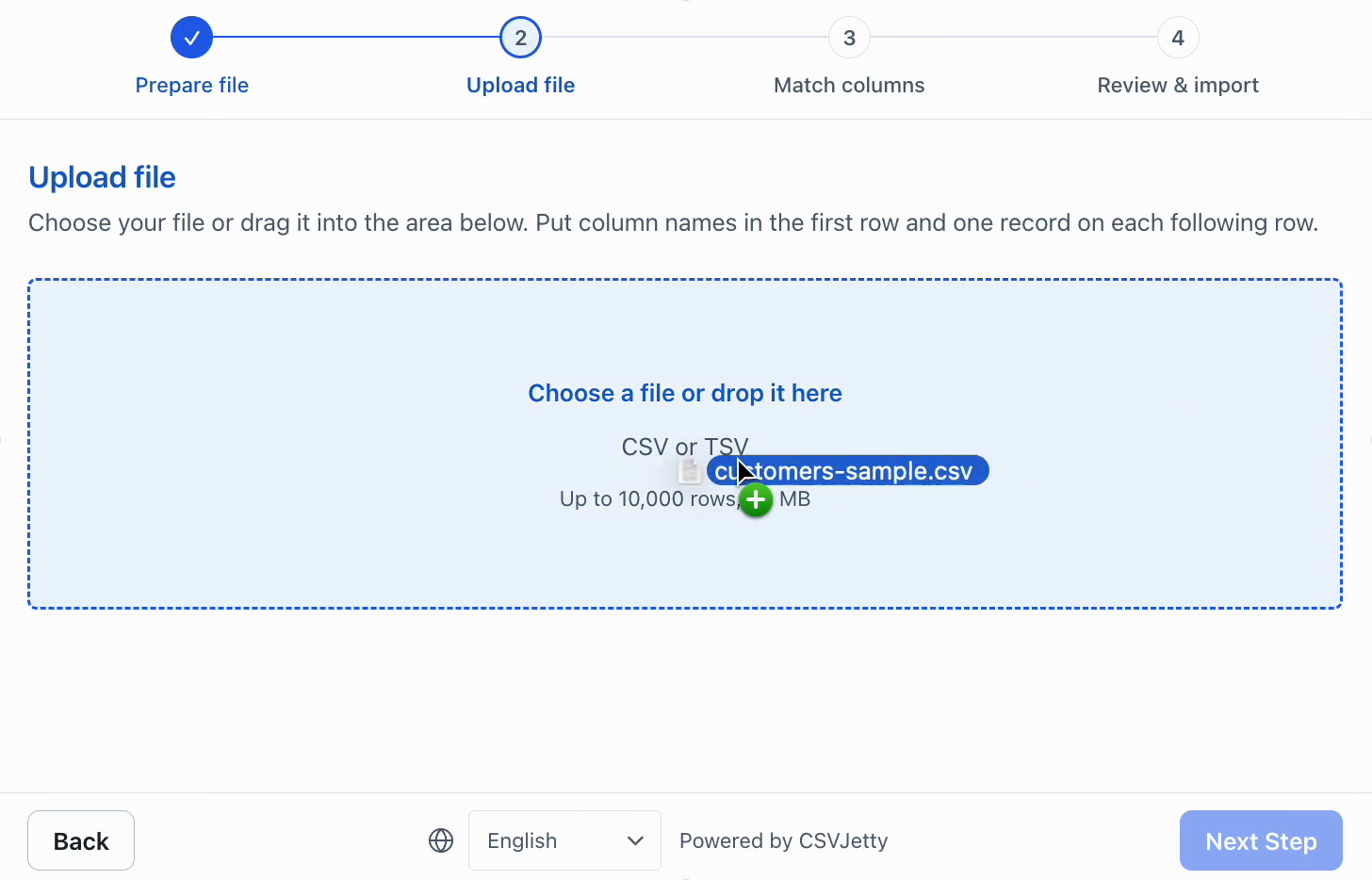
Start your app, sign in, and visit /import-contacts. Enable CSVJetty Development Mode while testing; it still delivers data, so use a test database. Upload the sample, check mappings, and finish. Confirm the records exist in your database. Repeat the same request after a simulated lost response to check retry behavior. A new file upload has a new import ID.
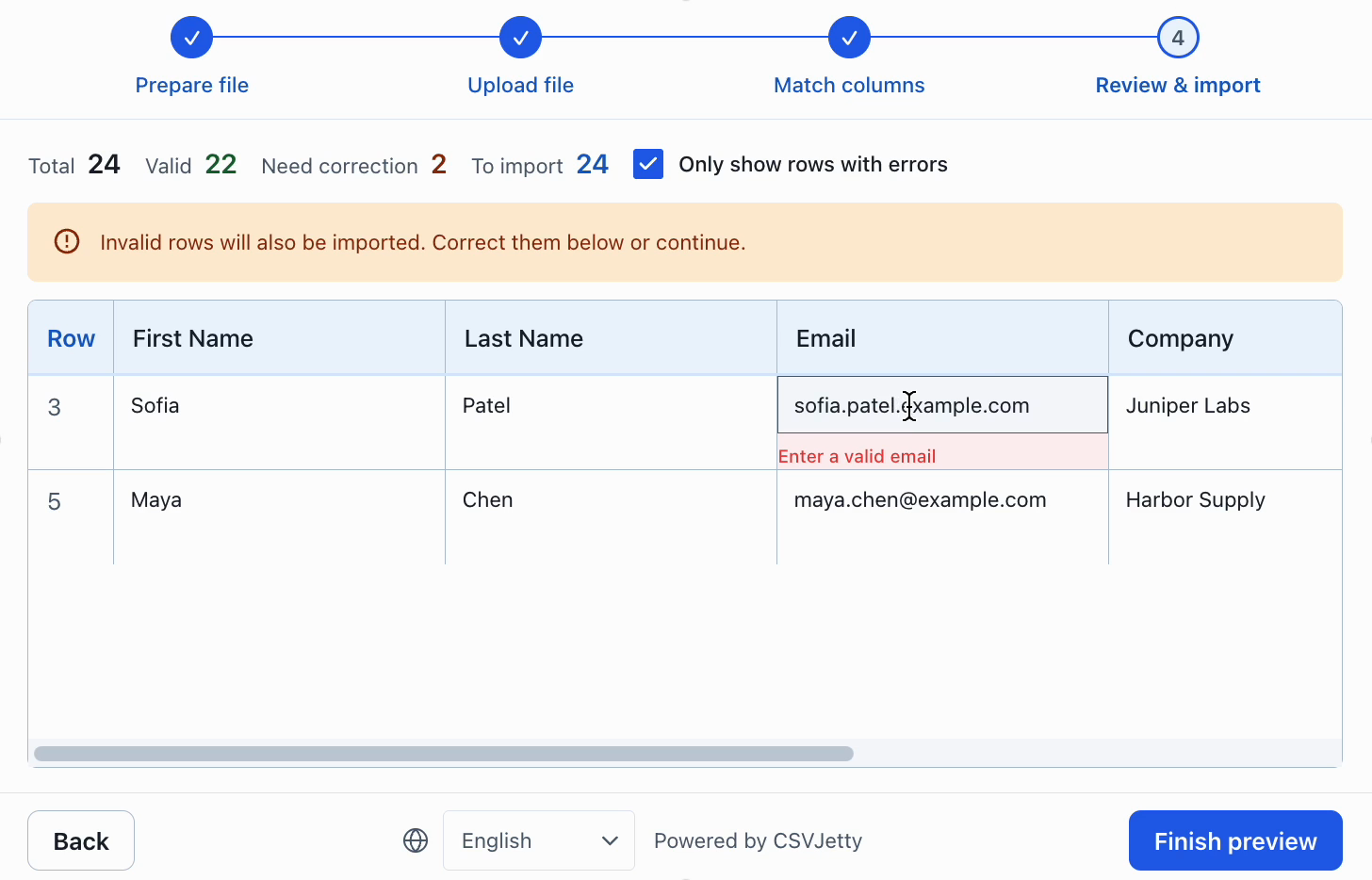
Source row 1 means the first data row after the header. Return row errors using rowNumbers, rather than array positions. Browser validation improves review; server validation and database constraints still decide what is saved.
Resources
Choose business-level duplicate handling
The API example above uses import ID plus source row for delivery idempotency. That does not merge a second upload by email. For a contact list that should keep one normalized email per account, use a unique owner/email key and choose explicitly whether to skip or update an existing contact.
Complete owner/email duplicate policy and saved-row counts →
Lovable-specific Supabase setup →
Build your importer
Configure the fields your app expects, then connect CSVJetty to your application.
Create an importer →