Add CSV import to a Lovable app
Add a customer-facing CSV upload to an existing Lovable app without asking the agent to build a parser, mapping screen or correction table from scratch.
View as MarkdownWhat you will build
Lovable can install public npm packages from a project prompt. Ask for csvjetty explicitly, then let the agent inspect the current project. Newer Lovable applications may use TanStack Start; older applications may use React/Vite. The reusable example below is a React component. It does not assume a particular router or generated backend.
CSVJetty supports React 18/19 and CSV files up to 20 MB. The free plan permits 10,000 rows per upload; paid permits 20,000. Configure at most 30 destination fields. Callback mode keeps row data out of CSVJetty servers while configuration and import metadata still use the hosted service. It is not a fully offline or self-hosted importer.
Place the importer in the existing Lovable application
Open package.json before asking Lovable to change the app. A Vite project usually has a client entry under src; a TanStack Start project also has server-rendered routes. Add the importer to the contacts screen already used by the app. Keep the generated route, navigation, and existing Supabase client. Adding a second router or auth provider makes a small import feature much harder to maintain.
Use the complete ContactPreview component below for the first pass. It imports csvjetty directly and owns its browser state. In a server-rendered project, avoid reading window, localStorage, or the signed-in browser session at module scope. Read browser-only state in an event handler or effect. A React use-client directive alone does not configure a TanStack route or disable server rendering.
After the preview works, use the Lovable + Supabase guide to replace the in-memory result table with authenticated persistence. Keep this first change limited to selecting a file, mapping its columns, and displaying the callback records.
Configure CSVJetty first
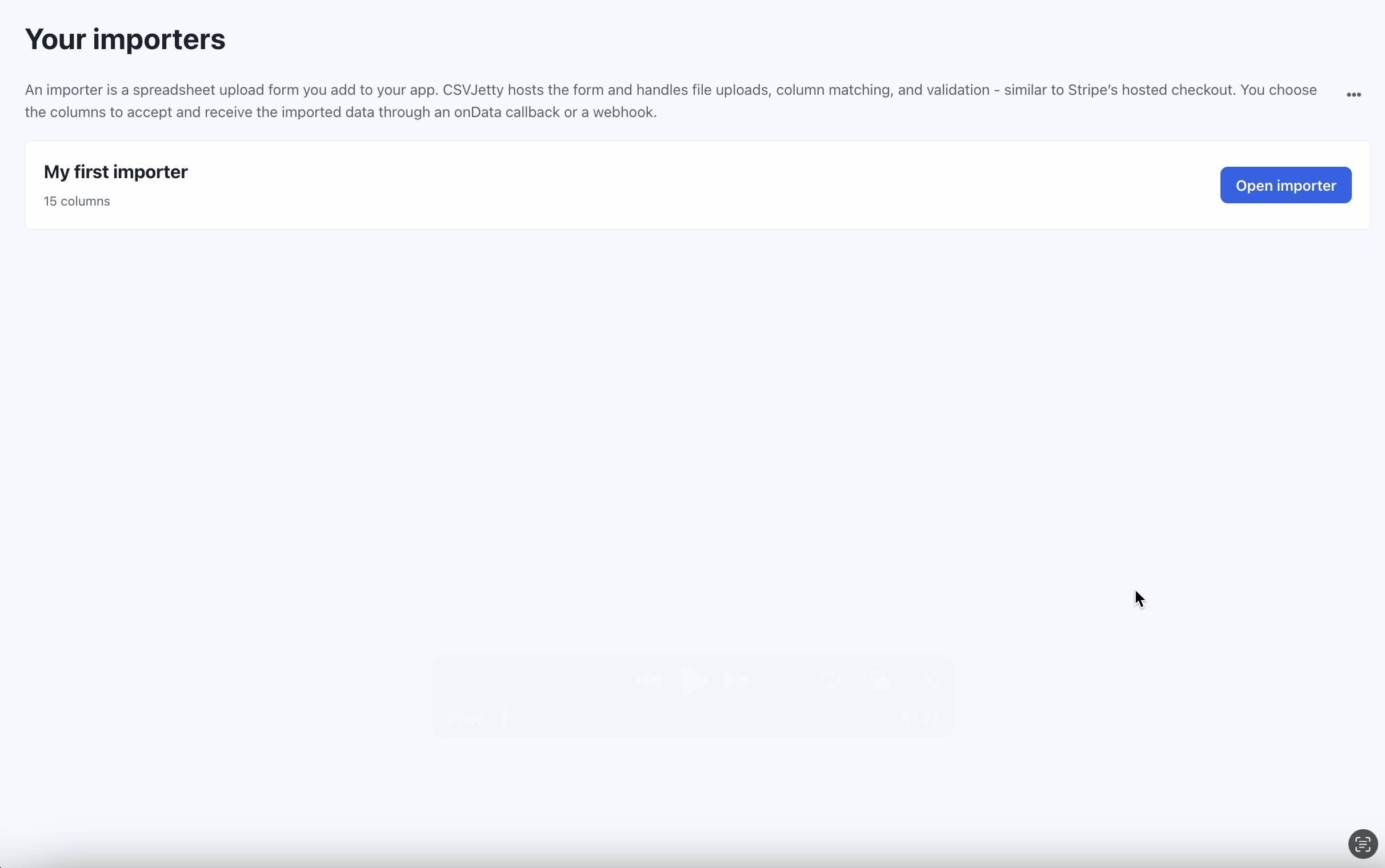
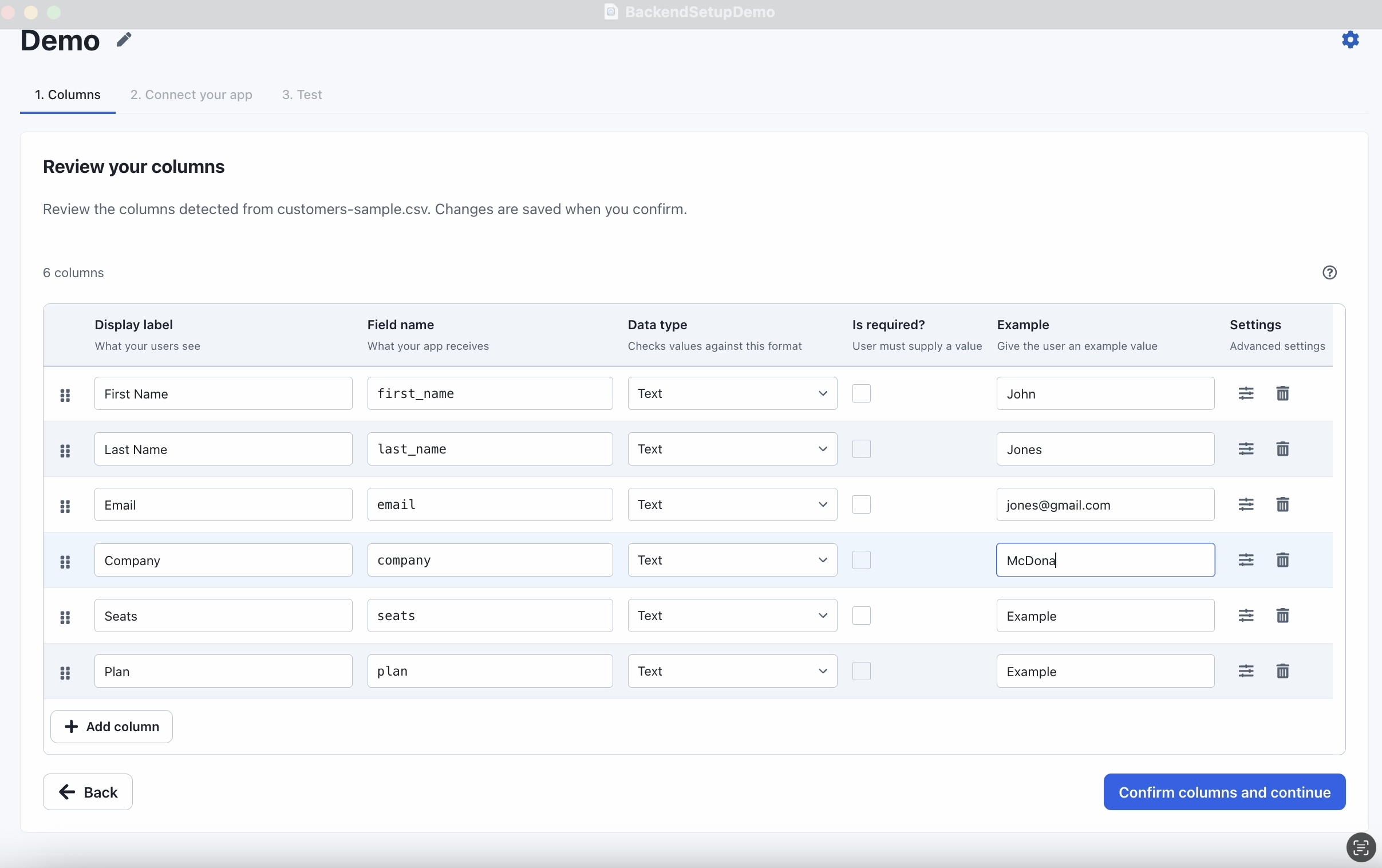
Create an importer in the CSVJetty dashboard, choose OnData Callback, and copy its public importer key. Enable Require valid rows so customers must fix browser validation errors before delivery. Development Mode still calls your save handler; use test data and a test database. Dashboard preview does not deliver rows.
Paste this prompt into Lovable
Replace YOUR_IMPORTER_KEY before using the prompt. Let the agent inspect the existing app and preserve its architecture.
Inspect this Lovable project before making changes. Identify whether it uses TanStack Start or React/Vite, locate the current contacts screen, and reuse its UI and authentication. Install csvjetty using the existing package manager. Add an Import contacts action using the default CSVJetty export and public importer key YOUR_IMPORTER_KEY. Configure name (required text), email (required email) and company (optional text). Use onData({ rows, rowNumbers, importId }) for delivery. Start with a clearly labeled in-memory preview; do not claim database persistence. Then report the existing save path and connect it only through the app’s authorized persistence logic. If Supabase is already configured, follow https://www.csvjetty.com/guides/lovable-supabase-csv-import and preserve RLS. Do not replace the framework or add another Supabase client. Test invalid email correction, ambiguous headers, failed saving and retries. Keep secrets out of browser code.
A complete browser preview
After the agent adds the component, inspect the actual diff. You should see the csvjetty dependency, one import action and an onData handler. The preview example should display prepared records and label them as in-memory. A database insert needs the separate Supabase path below; installing the package does not create a table.
npm install csvjetty
Download all example files (ZIP) →
File: components/ContactPreview.jsx
"use client";

import { useRef, useState } from "react";
import CSVJetty from "csvjetty";

export const contactColumns = [
  { name: "name", label: "Full name", type: "text", required: true,
    aliases: ["Full Name", "Contact Name"] },
  { name: "email", label: "Email", type: "email", required: true,
    aliases: ["Email Address", "Work Email"] },
  { name: "company", label: "Company", type: "text" },
];

export default function ContactPreview({ importerKey = "YOUR_IMPORTER_KEY" }) {
  const records = useRef(new Map());
  const [rows, setRows] = useState([]);
  const [message, setMessage] = useState("");

  return (
    <section aria-labelledby="contact-import-title">
      <h2 id="contact-import-title">Import contacts</h2>
      <p>This example keeps records in memory. Reloading clears them.</p>
      <CSVJetty
        importerKey={importerKey}
        columns={contactColumns}
        accentColor="#2563eb"
        onData={({ rows: batch, importId, rowNumbers }) => {
          batch.forEach((row, index) => {
            records.current.set(`${importId}:${rowNumbers[index]}`, row);
          });
          setRows([...records.current.values()]);
          return { errors: [] };
        }}
        onComplete={({ accepted, rejected }) => {
          setMessage(`Review finished: ${accepted} accepted, ${rejected} rejected. Records below are not saved to a database.`);
        }}
      >
        Import contacts
      </CSVJetty>
      <p role="status">{message}</p>
      <div style={{ overflowX: "auto" }}>
        <table>
          <caption>Prepared contacts in this browser session</caption>
          <thead><tr><th scope="col">Name</th><th scope="col">Email</th><th scope="col">Company</th></tr></thead>
          <tbody>{rows.map((row, index) => (
            <tr key={index}><td>{row.name}</td><td>{row.email}</td><td>{row.company}</td></tr>
          ))}</tbody>
        </table>
      </div>
    </section>
  );
}
Upload, map and correct a real file
Duplicate and invalid contacts sample →
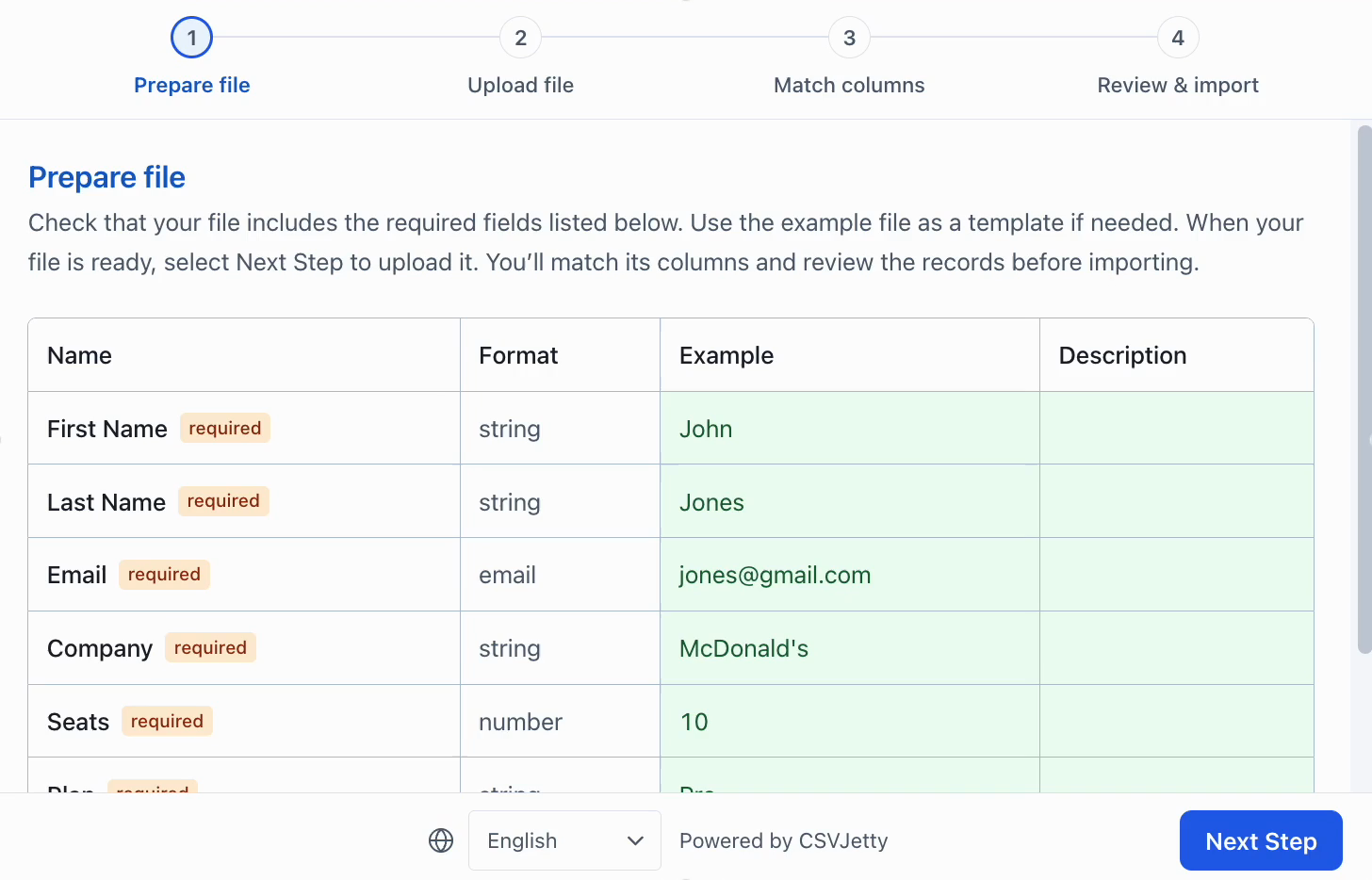
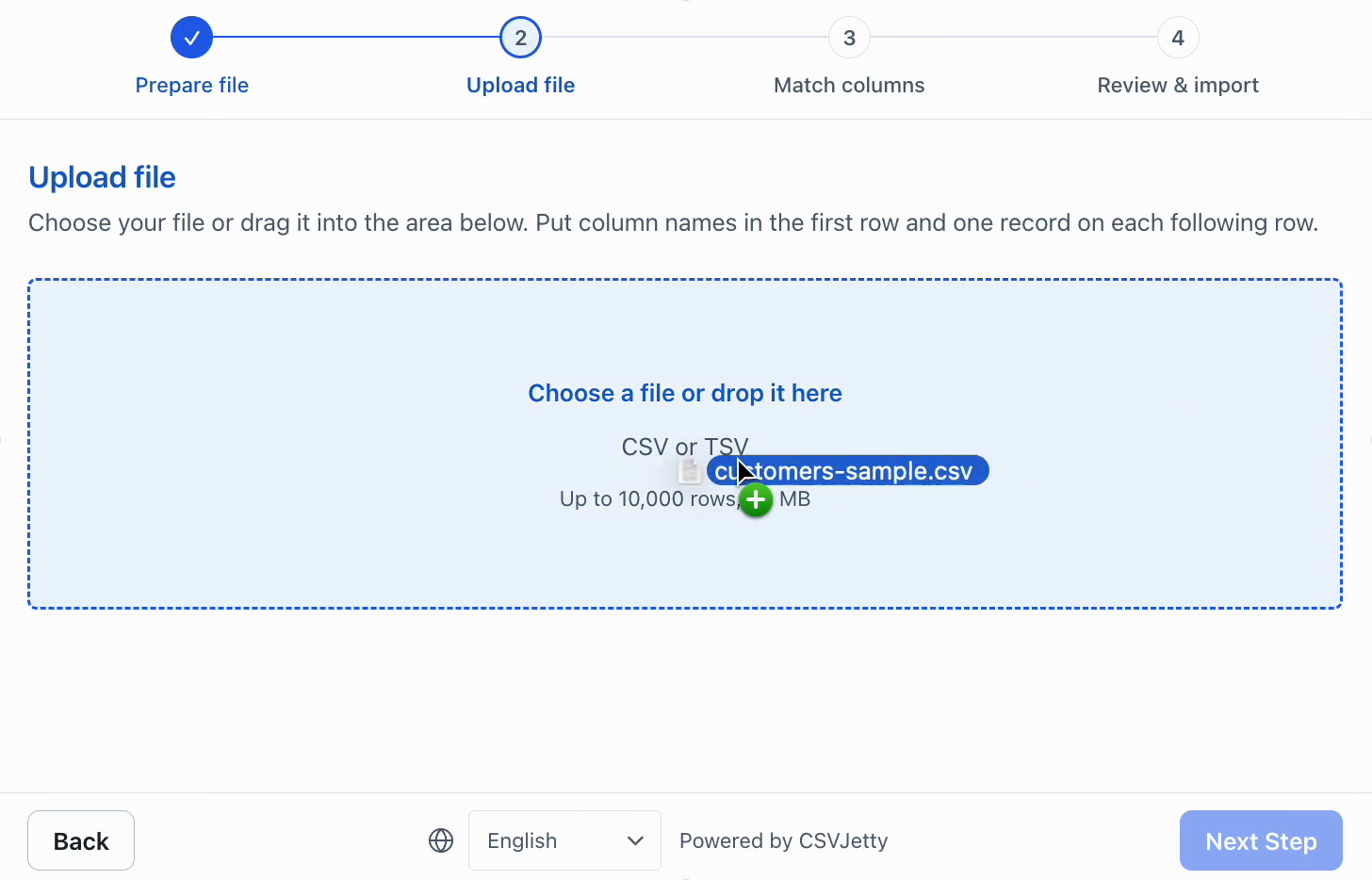
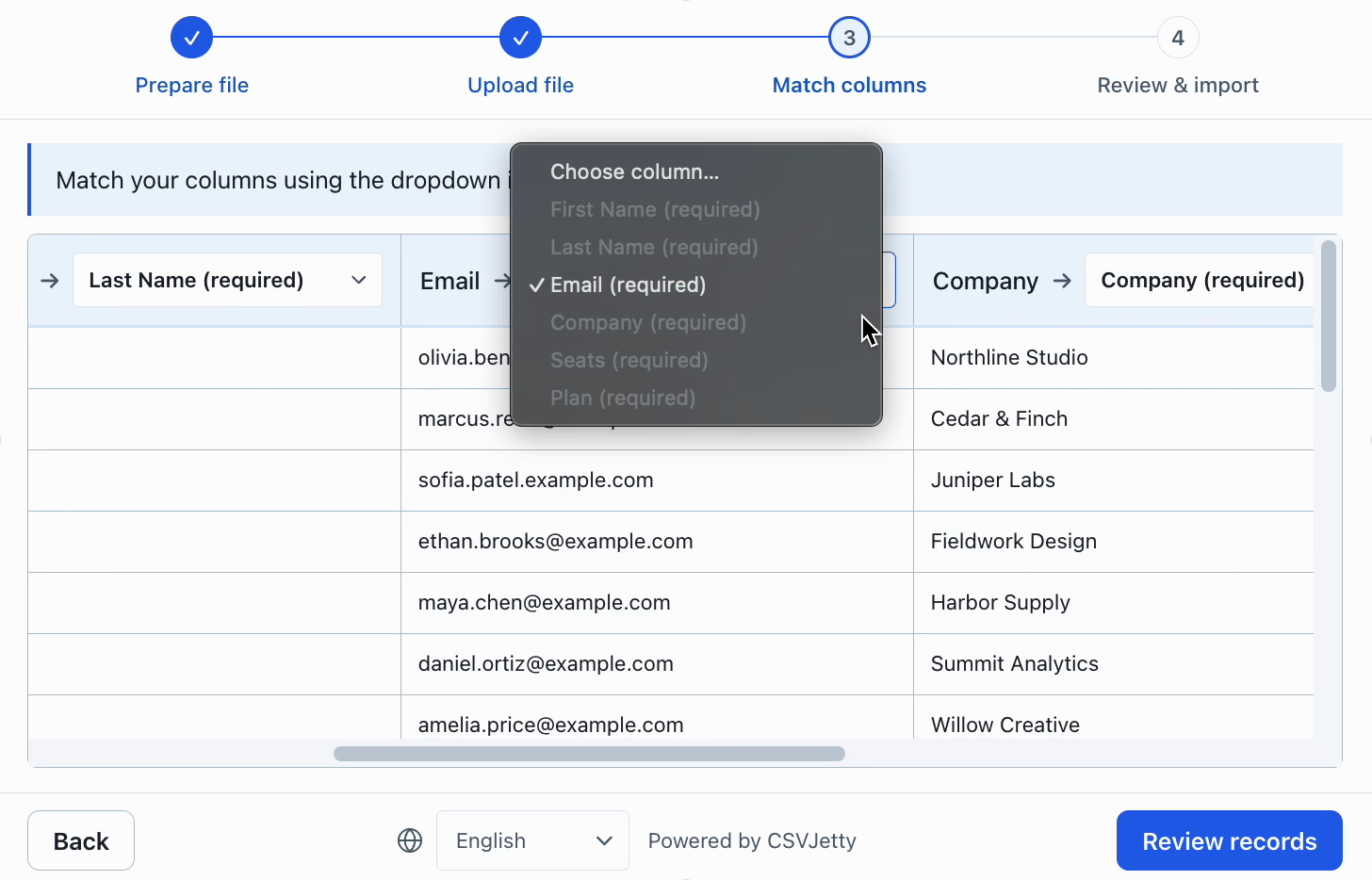
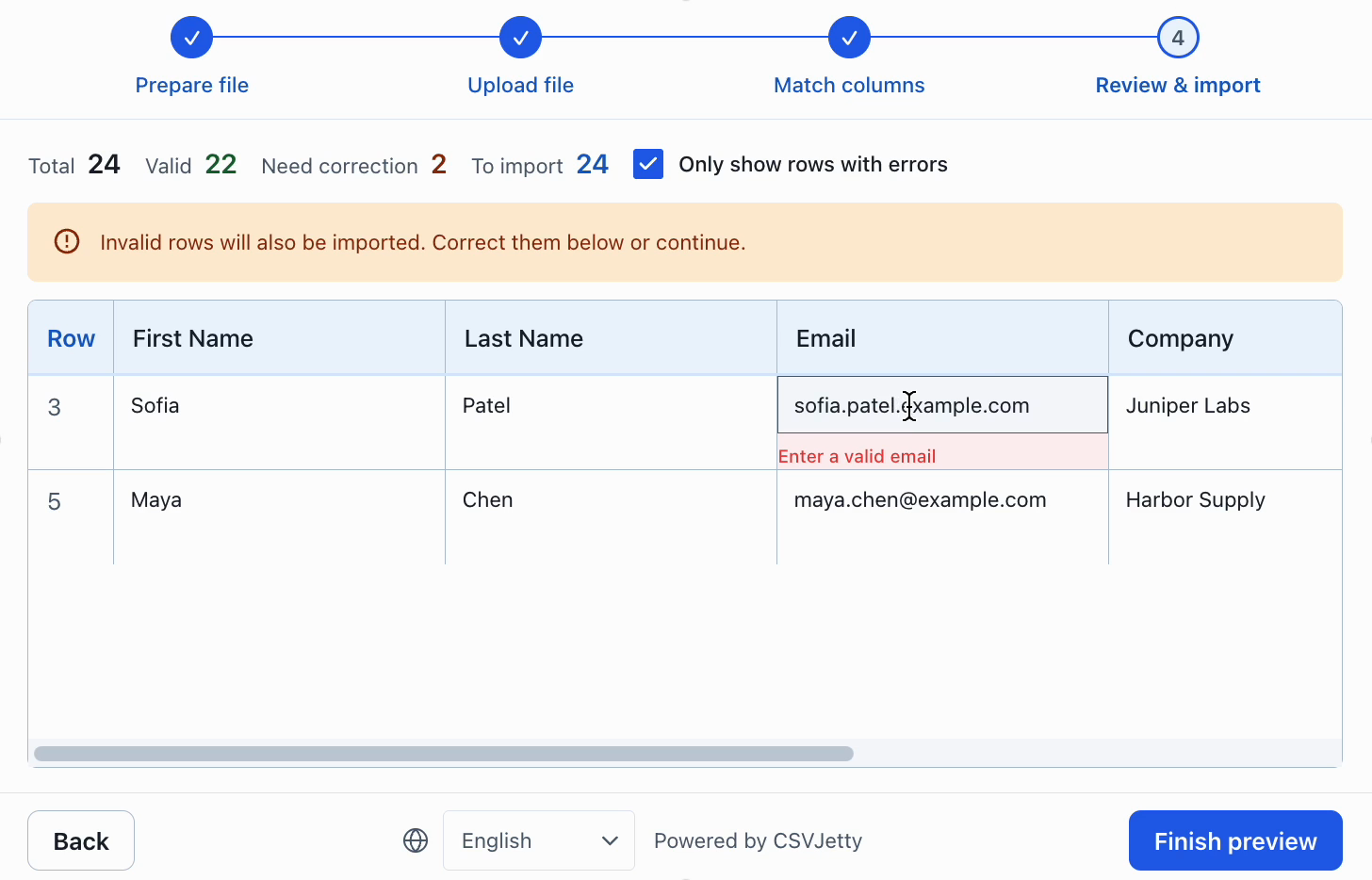
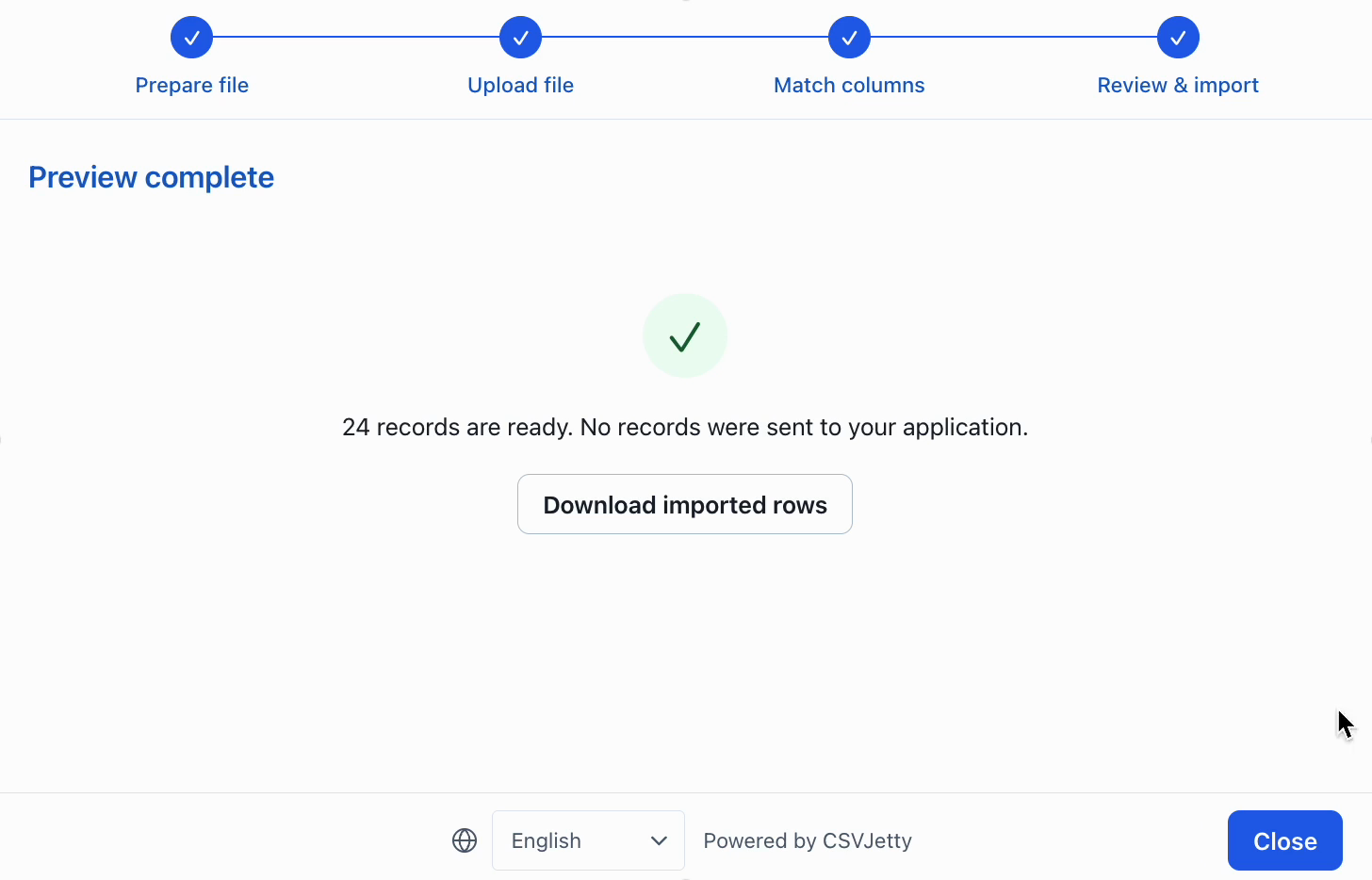
Upload the clean sample and check the resulting field names. Upload the invalid sample and fix the email. Rename a header and map it manually. Close during an unfinished import and check the discard confirmation. If saving is connected, force a save failure, retry, and verify the database instead of relying on the modal’s completion message.
Connect the real save path
The Map in the preview uses importId plus original row number to avoid showing the same delivery twice. It does not deduplicate a second file upload by email, and nothing survives a reload. For persistence, use the database’s unique constraint and account ownership rules. Treat onComplete counts as importer outcomes, not proof that records were newly inserted.
Customer uploads into Supabase →
Watch setup and the import flow
Troubleshoot Lovable preview and publishing
| Symptom | Check | Resolution |
|---|---|---|
| The agent draws a file picker but no mapping screen | Look for the csvjetty dependency and default CSVJetty import | Ask it to replace the mock picker with the installed component and the real public importer key. |
| window is not defined after switching project frameworks | Inspect code executed during server rendering | Move browser API access out of module scope; preserve the project’s existing client rendering pattern. |
| No database rows after a successful preview | Check whether ContactPreview is still the save handler | The preview stores results in memory. Connect the authenticated Supabase example before expecting persistence. |
| Only the published app fails | Compare the deployed importer key, auth redirect URL, and existing Supabase configuration | Test the published URL signed in, then check the first failing network request. Rebuild after public configuration changes. |
Resources
Build your importer
Configure the fields your app expects, then connect CSVJetty to your application.
Create an importer →