Add CSV import to a Replit React app
Integrate CSVJetty into a Replit React web app, then connect mapped and corrected CSV rows to the application’s existing backend.
View as MarkdownWhat you will build
A Replit project may contain both a React frontend and an application server. Keep those responsibilities separate: csvjetty renders in the frontend, and the existing server owns database writes. Replit Secrets supply private runtime configuration; they do not make a value safe to bundle into browser JavaScript.
CSVJetty supports React 18/19 and CSV files up to 20 MB. The free plan permits 10,000 rows per upload; paid permits 20,000. Configure at most 30 destination fields. Callback mode keeps row data out of CSVJetty servers while configuration and import metadata still use the hosted service. It is not a fully offline or self-hosted importer.
Keep Replit’s frontend and server responsibilities separate
Inspect the start command and package.json before installing anything. A Replit app can have a React client and a separate Node server. Install csvjetty in the package that builds the React frontend, then mount the complete preview component on an existing page. Do not add it to the Node server entry point.
Keep existing Replit Auth, Clerk, or custom authentication in place. When the importer calls onData, send the prepared records through the app’s existing authenticated API. The server must derive the record owner from the verified session. A CSV column called user_id is input data, not proof of ownership.
Use Secrets for database credentials. Replit also has Configurations for non-sensitive environment values. Review the published app’s production settings separately from the editor. Static deployments do not provide runtime secrets; a Vite public variable is compiled into the frontend, while a database connection string must remain server-side.
Configure CSVJetty first
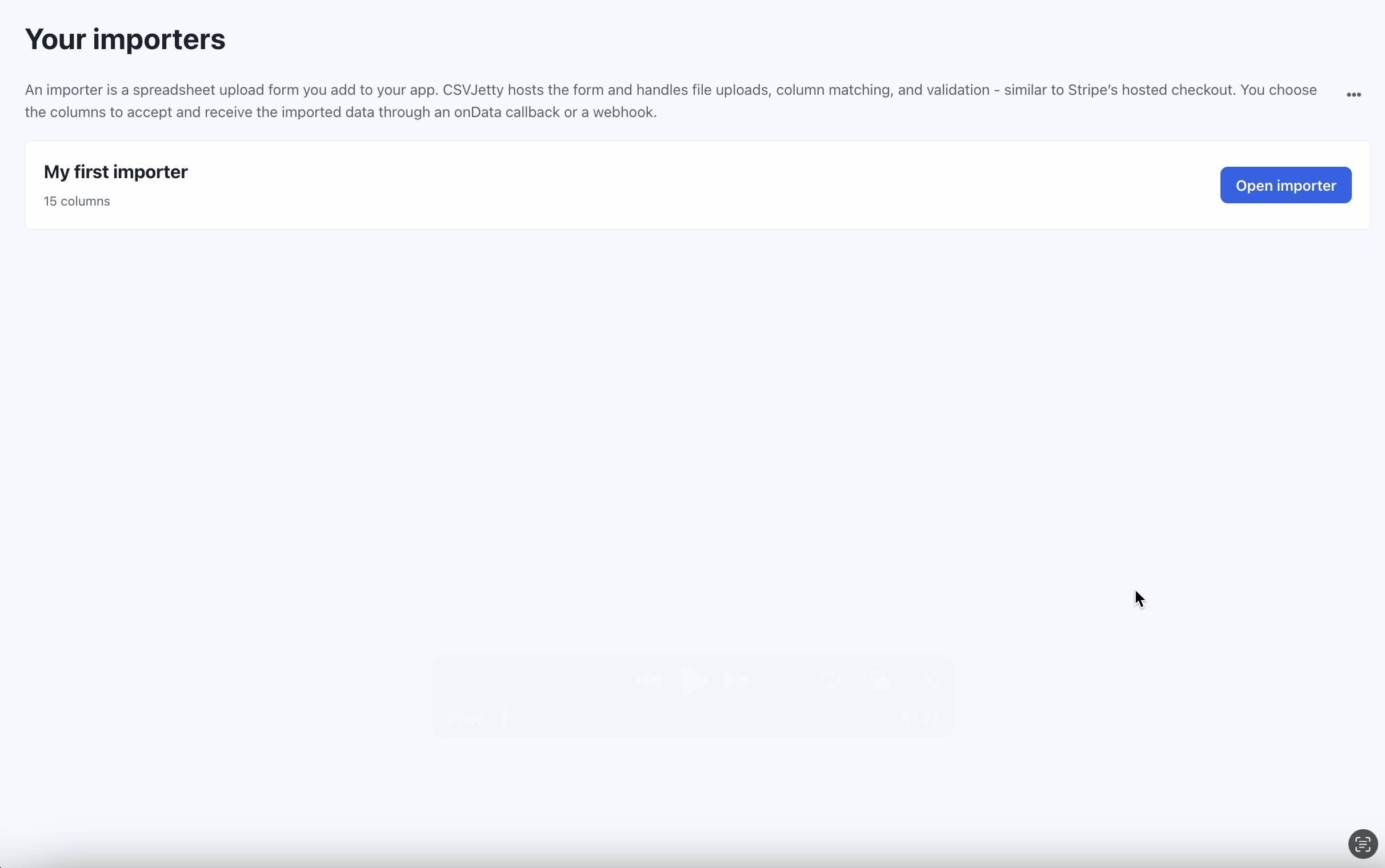
Create an importer in the CSVJetty dashboard, choose OnData Callback, and copy its public importer key. Enable Require valid rows so customers must fix browser validation errors before delivery. Development Mode still calls your save handler; use test data and a test database. Dashboard preview does not deliver rows.
Paste this prompt into Replit
Replace YOUR_IMPORTER_KEY before using the prompt. Let the agent inspect the existing app and preserve its architecture.
Inspect this Replit app’s client and server folders, package manager, auth middleware and persistence code. For a React web frontend, install csvjetty and add a CSVJetty Import contacts action with importerKey YOUR_IMPORTER_KEY. Use required name/text and email/email columns and optional company/text. Render the reusable component inside the existing contacts page. onData receives { rows, rowNumbers, importId }; await the existing authenticated server endpoint before resolving. Reuse the server session or existing bearer-token flow, ignore uploaded owner IDs and scope writes using verified identity. Keep database secrets in the server runtime. If no save endpoint exists, show an explicitly labeled in-memory preview and report the missing persistence work. Do not silently claim the data was saved. Test invalid rows, unauthorized writes, duplicate retries and the published app.
A complete browser preview
Use Replit’s server environment for database credentials. Do not add DATABASE_URL to a VITE_ variable or return it from an endpoint. A static deployment can host the preview component, but database saving still needs an authorized backend. Inspect the deployed server’s configuration rather than assuming development Secrets have been copied into every publishing mode.
npm install csvjetty
Download all example files (ZIP) →
File: components/ContactPreview.jsx
"use client";

import { useRef, useState } from "react";
import CSVJetty from "csvjetty";

export const contactColumns = [
  { name: "name", label: "Full name", type: "text", required: true,
    aliases: ["Full Name", "Contact Name"] },
  { name: "email", label: "Email", type: "email", required: true,
    aliases: ["Email Address", "Work Email"] },
  { name: "company", label: "Company", type: "text" },
];

export default function ContactPreview({ importerKey = "YOUR_IMPORTER_KEY" }) {
  const records = useRef(new Map());
  const [rows, setRows] = useState([]);
  const [message, setMessage] = useState("");

  return (
    <section aria-labelledby="contact-import-title">
      <h2 id="contact-import-title">Import contacts</h2>
      <p>This example keeps records in memory. Reloading clears them.</p>
      <CSVJetty
        importerKey={importerKey}
        columns={contactColumns}
        accentColor="#2563eb"
        onData={({ rows: batch, importId, rowNumbers }) => {
          batch.forEach((row, index) => {
            records.current.set(`${importId}:${rowNumbers[index]}`, row);
          });
          setRows([...records.current.values()]);
          return { errors: [] };
        }}
        onComplete={({ accepted, rejected }) => {
          setMessage(`Review finished: ${accepted} accepted, ${rejected} rejected. Records below are not saved to a database.`);
        }}
      >
        Import contacts
      </CSVJetty>
      <p role="status">{message}</p>
      <div style={{ overflowX: "auto" }}>
        <table>
          <caption>Prepared contacts in this browser session</caption>
          <thead><tr><th scope="col">Name</th><th scope="col">Email</th><th scope="col">Company</th></tr></thead>
          <tbody>{rows.map((row, index) => (
            <tr key={index}><td>{row.name}</td><td>{row.email}</td><td>{row.company}</td></tr>
          ))}</tbody>
        </table>
      </div>
    </section>
  );
}
Upload, map and correct a real file
Duplicate and invalid contacts sample →
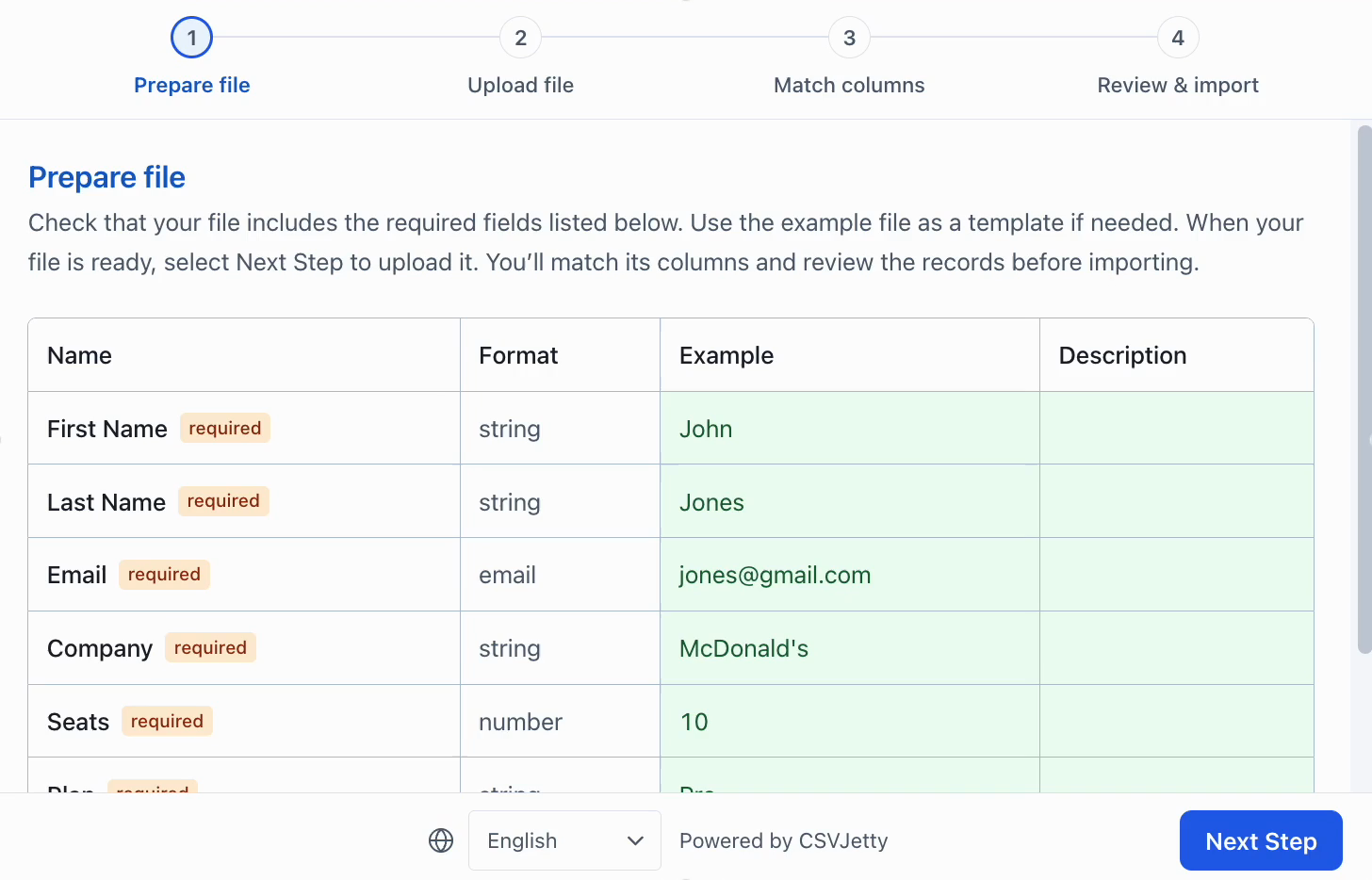
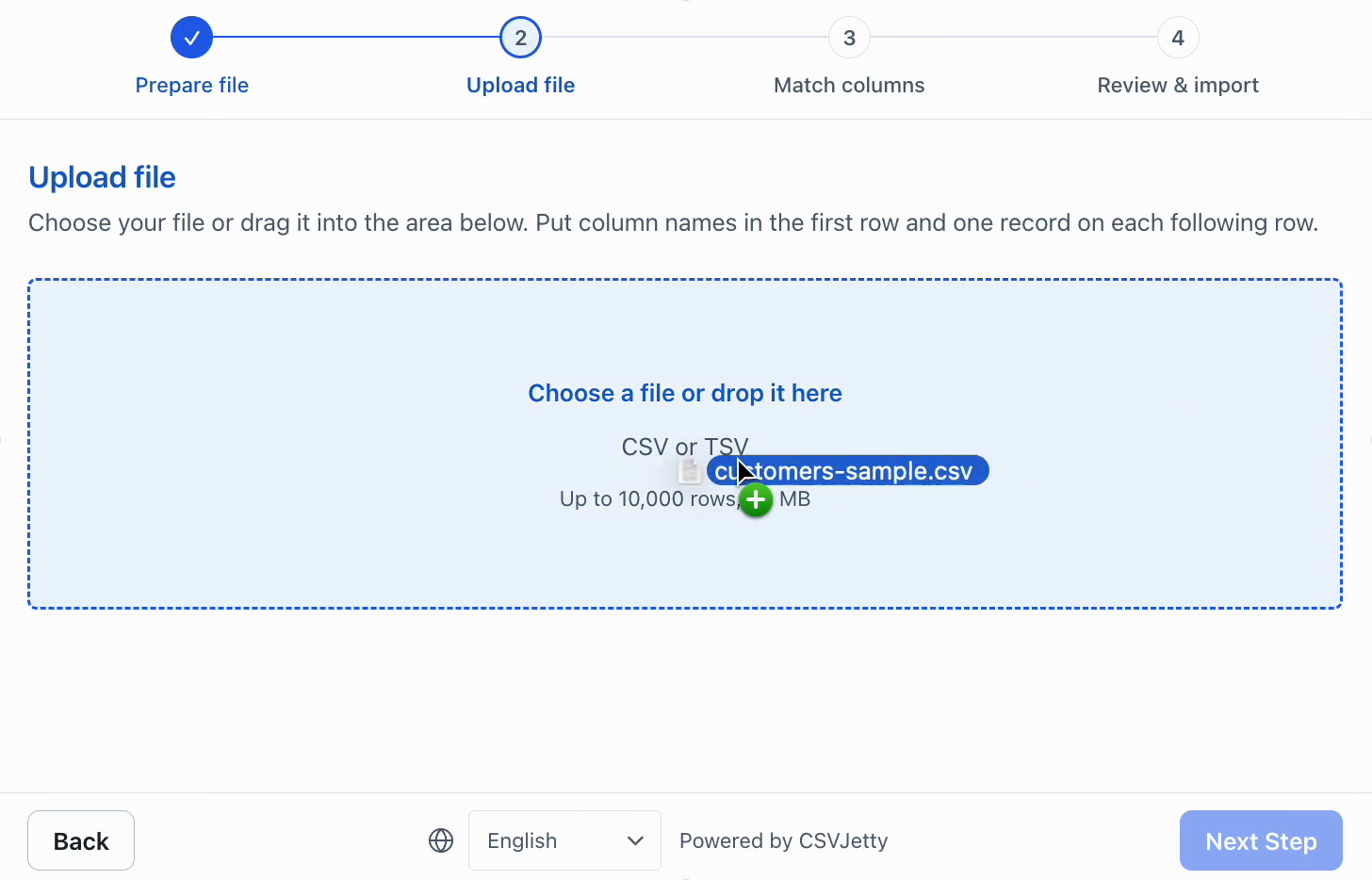
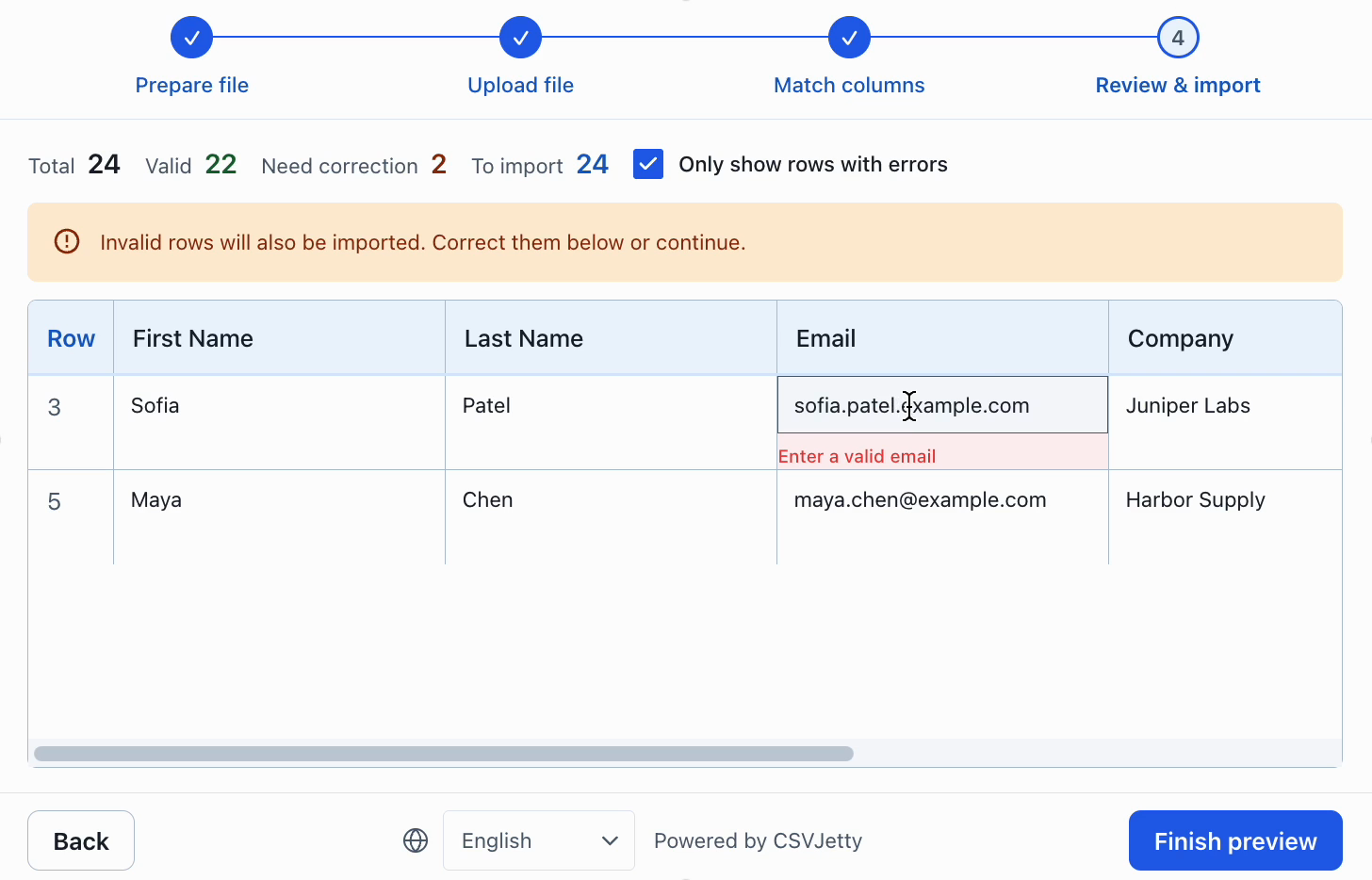
Upload the clean sample and check the resulting field names. Upload the invalid sample and fix the email. Rename a header and map it manually. Close during an unfinished import and check the discard confirmation. If saving is connected, force a save failure, retry, and verify the database instead of relying on the modal’s completion message.
Connect the real save path
The Map in the preview uses importId plus original row number to avoid showing the same delivery twice. It does not deduplicate a second file upload by email, and nothing survives a reload. For persistence, use the database’s unique constraint and account ownership rules. Treat onComplete counts as importer outcomes, not proof that records were newly inserted.
Customer uploads into Supabase →
Watch the CSV upload and correction flow
Troubleshoot the editor, published app, and save endpoint
| Symptom | Where to look | Fix |
|---|---|---|
| API returns an HTML page instead of JSON | Browser Network response and server route registration | Use the real API route rather than the frontend fallback; verify the existing server handles the POST. |
| Import saves in the editor but fails on the published URL | Publishing settings and production app secrets | Configure the production credentials and confirm the intended database and auth callback URL. |
| A login page appears in the import response | The API request lost the authenticated session | Reuse the app’s same-origin authenticated request helper and server middleware. |
| Import button never appears | Frontend route and installed package location | Mount the React component in the browser app, not the server or an unused generated file. |
| The preview shows accepted rows but the database is empty | onData handler and server logs | Await the write and surface its errors; importer completion alone is not a database receipt. |
Resources
Build your importer
Configure the fields your app expects, then connect CSVJetty to your application.
Create an importer →